

Ever enabled “Delay JavaScript” and suddenly your mobile menu forgot how to open?
Nowadays, that’s the fastest way to hate performance plugins: you flip a few toggles, your site feels quicker… and then the checkout, menu, or some slider breaks. This guide is here to prevent that — with FlyingPress settings you can actually trust, plus best FlyingPress settings pairings with Perfmatters, where the two plugins don’t fight each other.
The goal: exactly what to enable in each plugin + what to leave off, including Elementor, WooCommerce, Cloudflare, and the common “delay JS” gotchas. This is a bit different then your regular WordPress speed optimization guide.
Below is a conflict-free setup you can follow step by step, with clear ‘enable/avoid’ rules and quick tests after each change.
Table of Contents
- The core rule: one plugin “drives”, the other “trims”
- The safe baseline (what I’d do first)
- No-overlap checklist (what to enable where)
- Recommended FlyingPress (v5) settings (practical, conflict-free)
- Elementor notes (don’t fight the builder)
- GeneratePress / Blocks best FlyingPress settings
- WooCommerce notes (don’t cache what should never be cached)
- Cloudflare notes (keep it simple on free plan)
- How to test without guessing (the workflow that keeps you sane)
- Closing (back to the punchline)
- FAQ
The core rule: one plugin “drives”, the other “trims”
Here’s the simplest way to avoid overlap:
- FlyingPress = page caching + front-end optimizations (CSS/JS, lazy loading, fonts, bloat reduction that requires rendering logic).
- Perfmatters = “surgical trimming” (disable scripts/features, clean WordPress annoyances, Script Manager per page, preconnects, small toggles).
If you let both do the same job (minify, delay, remove unused CSS), you’ll get duplicate behavior, inconsistent results, or random breakage.
The safe baseline (what I’d do first)
Step 1) FlyingPress: enable the “big wins” that are least likely to break
In FlyingPress v5, the Optimizations area is intentionally more structured and visual than older versions — use it.
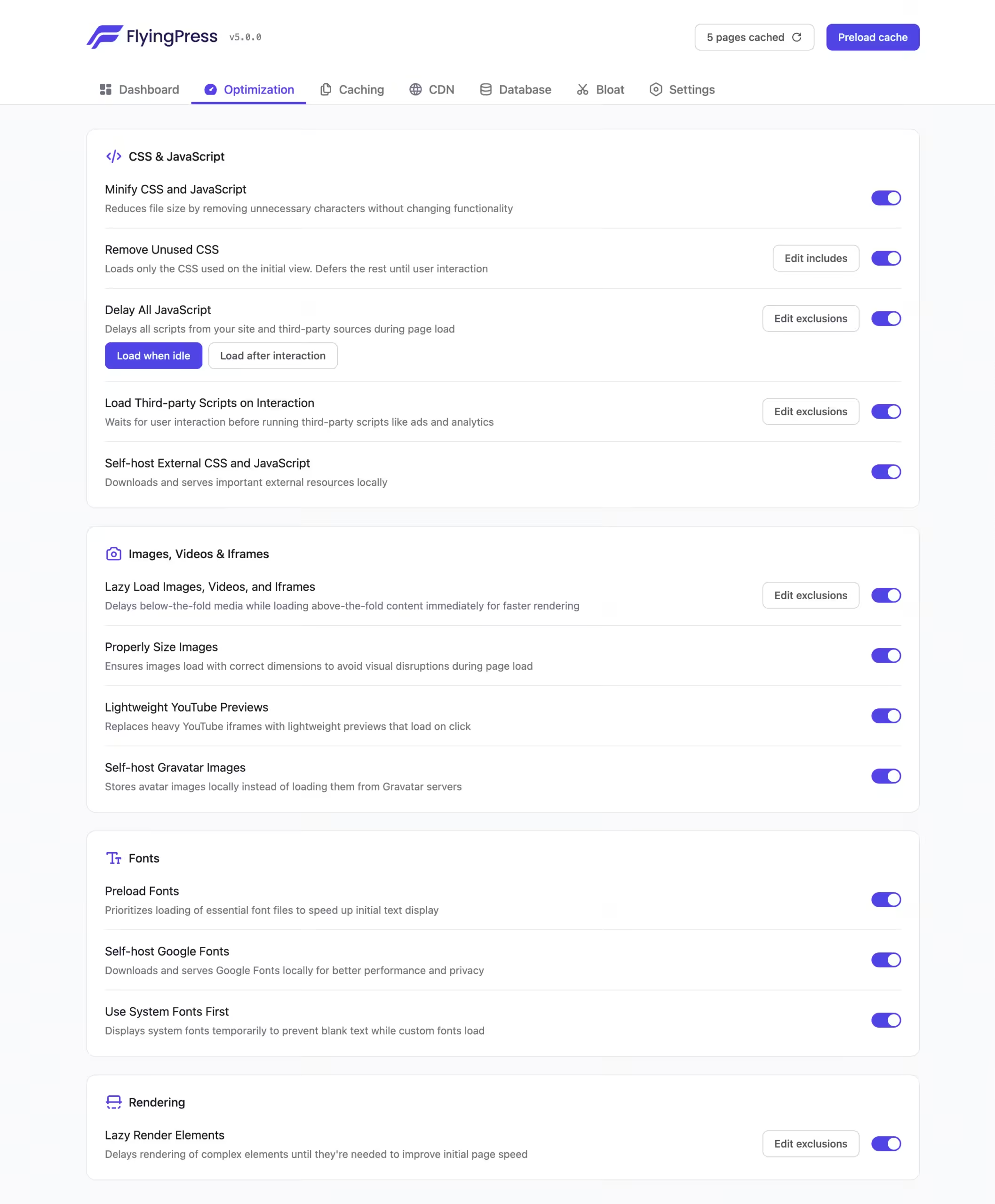
Start with these (usually safe):
- Lazy load images/videos/iframes
- Lightweight YouTube embeds (if available in your setup)
- Self-host Google Fonts (if you rely on them)
- Preload key fonts (only the fonts actually used above the fold)
- Bloat options like emoji/embeds cleanup (if present in your UI)
Hold off (until after you test):
- Remove Unused CSS (great, but needs validation on templates)
- Delay JavaScript (great, but the #1 source of “menu broke”)
- Lazy render elements (great for heavy builders, needs testing)
Why FlyingPress first? Because it’s built to handle “render-aware” optimizations and includes purpose-built tooling/flows in v5.
Step 2) Perfmatters: use Script Manager as the “scalpel”
Your biggest Perfmatters superpower is Script Manager — disabling what shouldn’t load on a page in the first place. This reduces JS/CSS before FlyingPress even has to optimize it.
You can access the Script Manager granularly on a particular page/post by adding ‘?perfmatters’ suffix to the end of the URL.
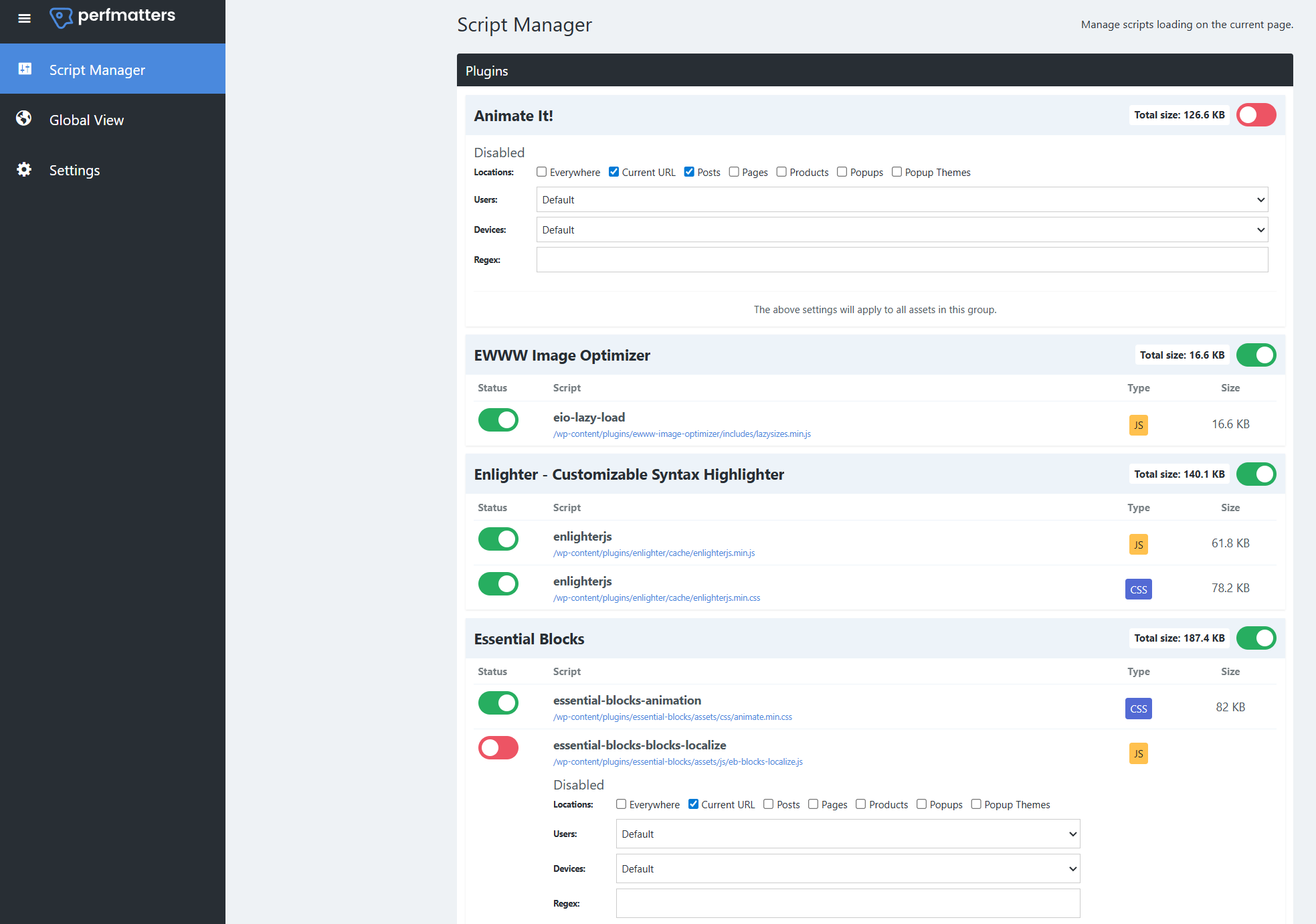
Good Perfmatters wins that don’t overlap with FlyingPress much:
- Script Manager (disable per page / per post type)
- Disable Heartbeat or limit it (admin performance + server load)
- Disable emojis, embeds, dashicons on front-end (when safe)
- Preconnect / DNS-prefetch for real third-party dependencies (fonts, analytics, payment gateways)
No-overlap checklist (what to enable where)
If FlyingPress is doing it, disable it in Perfmatters.
To avoid duplicate processing and weird edge cases:
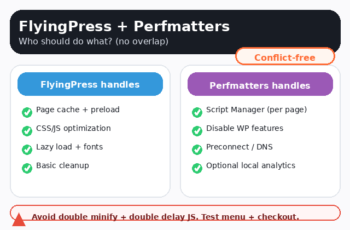
Let FlyingPress handle:
- Remove Unused CSS
- Delay JavaScript
- Minify CSS/JS (if you use it at all)
- Lazy load / YouTube previews
- Font handling (self-hosting Google Fonts, font preload)
Let Perfmatters handle:
- Disable features (emojis, embeds, heartbeat, XML-RPC if appropriate)
- Script Manager (per-page asset control)
- Small cleanups that aren’t “render pipeline” features
That’s the “no overlap, no breakage” foundation.
Recommended FlyingPress (v5) settings (practical, conflict-free)
1) Caching and preload (the boring part that pays the bills)
Even if you’re on Cloudflare, you still want consistent origin caching behavior (and safe exclusions for dynamic pages).
What to ensure in FlyingPress:
- Page cache is enabled for guests
- Cache is bypassed for:
- /cart/, /checkout/, /my-account/ (WooCommerce)
- logged-in users
- pages with personalized content
FlyingPress v5 also highlights workflow around optimization processing/queueing — useful when you’re rolling changes across templates.
2) CSS FlyingPress settings
Start: Minify CSS (if offered) + basic CSS delivery improvements
Then: Remove Unused CSS (only after you confirm templates)
How to test quickly:
- Homepage
- One blog post
- One “heavy” page (Elementor / builder page)
- Cart + checkout (WooCommerce)
If any layout shifts or missing styles happen, don’t panic — you usually just need exclusions for critical selectors/templates.
3) JavaScript (where sites break)
This is where people lose time. And this is where experts shine.
Order of operations:
- First use Perfmatters Script Manager to remove obvious junk per page.
- Then enable FlyingPress “Delay JavaScript” carefully.
Common break points when delaying JS:
- Mobile menu toggles (especially builder themes)
- Sticky header scripts
- Cookie banner “accept” button
- Payment scripts (Stripe/PayPal) on checkout
- Variation swatches / quick view on WooCommerce
Safe approach: delay “third-party” scripts before delaying “everything”. If your FlyingPress settings UI has a specific third-party delay option, start there.
Elementor notes (don’t fight the builder)
If you run Elementor pages, your biggest win is usually:
- reducing third-party widgets
- removing unused assets per template via Script Manager
- being careful with global “delay all JS” until you whitelist what Elementor pages need
Practical testing checklist:
- Hero section animations
- Popups / sliders
- Contact forms
- Sticky header + mobile menu
GeneratePress / Blocks best FlyingPress settings
On GeneratePress and block builders typically fewer exclusions are needed.
You can be more aggressive with FlyingPress settings — delay/defer, and keep exclusions minimal.
WooCommerce notes (don’t cache what should never be cached)
For WooCommerce, “fast” is worthless if it’s wrong. You need to tailor your website FlyingPress settings to precisely get you the maximum performance and zero errors. A high ask, but it’s worth it.
Make sure these are always excluded from page caching:
- Cart
- Checkout
- My account
- Any “order received” / thank you pages
- Any pages that show user-specific pricing/content
Also test:
- Add to cart
- Quantity updates
- Shipping recalculation
- Payment methods loading
Cloudflare notes (keep it simple on free plan)
If you’re using Cloudflare in front of your site:
- Don’t stack multiple HTML caching layers unless you fully understand cookie bypass rules.
- If you do use Cloudflare Cache Rules, learn how cache rules/caching works and how cache keys affect behavior.
A practical rule of thumb:
- Let FlyingPress handle WordPress page caching
- Let Cloudflare handle static assets + network edge delivery
- Avoid “Cache Everything” for HTML unless you’re explicitly bypassing cookies safely (especially on WooCommerce)
How to test without guessing (the workflow that keeps you sane)
- Baseline test (before toggles)
- Enable one feature
- Retest (and check console errors + key flows)
- Move to the next feature
What I always test:
- Mobile menu open/close
- Form submission
- Cookie consent
- Checkout flow (if WooCommerce)
- Logged-in vs guest view
In the end, and if you get the best FlyingPress settings correctly, you’ll get a better-performing website (you can test with a plugin like Speed Analyzer), without sacrificing any functionality or styling.
And if you can’t get it, feel free to read about our WordPress Speed Optimization Service, we can help you get there.
If you see breakage:
- Undo the last toggle
- Use exclusions/whitelists
- Then re-enable
Closing (back to the punchline)
If your last “delay JS” attempt broke the mobile menu, it wasn’t you being careless — it was two tools doing the same job (or one tool doing it too aggressively).
Split responsibilities, test one toggle at a time, and you’ll get the wins without the “why is the site weird now?” moments.
That’s the whole point of best FlyingPress settings (when you’re also using Perfmatters): one clear owner per job.
- Let FlyingPress handle the heavy lifting: caching + core optimizations (CSS/JS delivery, images, fonts) in a controlled way.
- Let Perfmatters do what it’s best at: Script Manager + “disable bloat” decisions on a per-page basis.
When you set it up this way, you get the real win people actually want: faster pages without the “why is the site weird now?” moments.
So if you want a setup you can trust (and explain to a client or a developer without hand-waving), stick to the conflict-free split in this guide, re-test after every change, and keep a short exclusion list for the stuff that must stay interactive (Elementor widgets, menus, cart/checkout).
That’s how best FlyingPress settings become repeatable — not just “it felt faster once.”
This was an article on FlyingPress, but you could do the same with WP Rocket, you can read about the difference between them in our FlyingPress vs WP Rocket article.
This article was ment to be precise, short, and to the point. I hope it succeed in delivering it.
Thank you for reading it.
FAQ
Can I run FlyingPress and Perfmatters together?
Yes — the clean pairing is: FlyingPress handles caching + render-side optimizations; Perfmatters handles Script Manager + feature toggles. We, at WPservice.pro, do it all the time.
What breaks most often?
Global JavaScript delaying. Start with per-page trimming (Script Manager), then delay JS carefully and whitelist what your menu/checkout needs.
Do I need Cloudflare cache rules too?
Not for most sites. Cloudflare is great for static delivery, but HTML caching needs careful cookie bypass rules — especially with WooCommerce.
Founder of WPservice.pro
Dalibor is a master of web excellence. With a Bachelor of Science (BS) in civil engineering, Dalibor had an unusual road to end up in IT. Cultivating deep expertise in WordPress website speed optimization, meticulous maintenance, development, and search engine optimization (SEO) while preserving his engineering approach to problem-solving.
Having completed over 90 projects and achieved a top-rated status (on Upwork) in the highly competitive digital niche, Dalibor is a proper authority on enhancing performance and ensuring websites look exceptional and perform flawlessly.
Dalibor is a published writer and an avid learner who continually explores and embraces the latest digital trends. With a commitment to quality and a keen eye for detail, Dalibor is your trusted guide to achieving web success.