
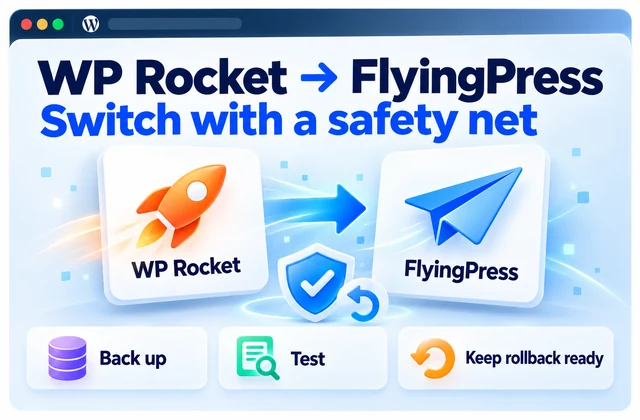

Changing the caching plugin is easy. Explaining why the checkout stopped working takes longer. If you want to switch from WP Rocket to FlyingPress, the useful question is what must keep working while the optimization changes. A reversible plan gives you a better answer than a screenshot of a green score.
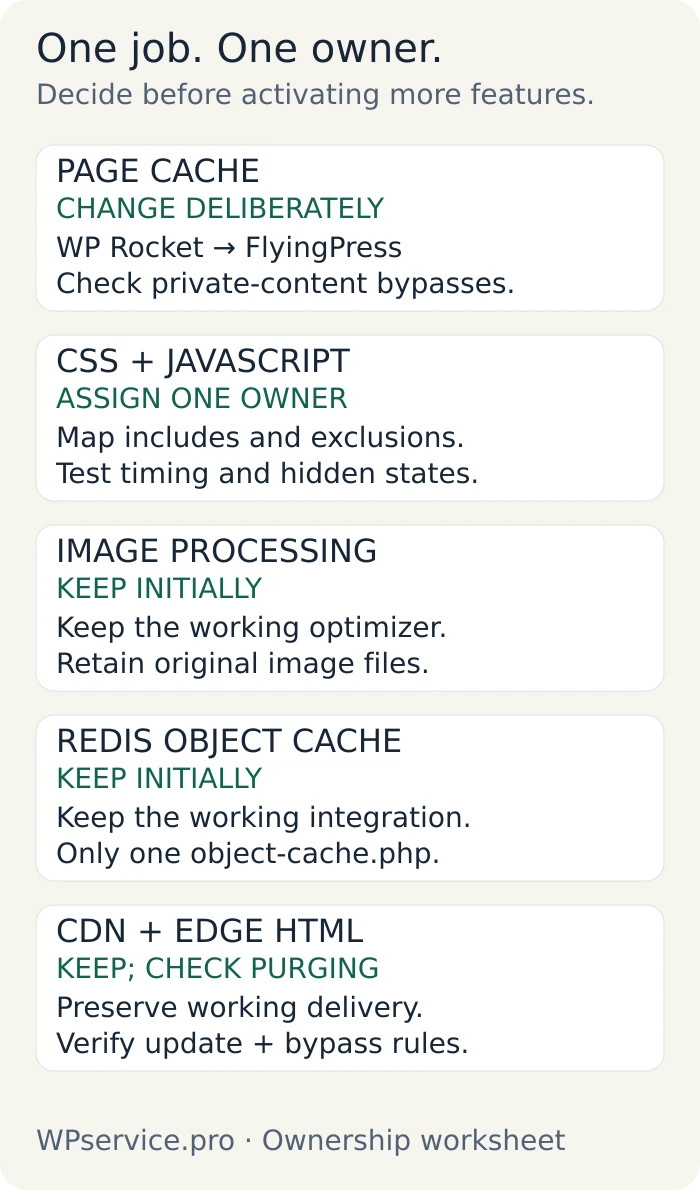
The short answer: Back up the site, record WP Rocket’s settings and exclusions, and rehearse on protected staging. Deactivate WP Rocket before FlyingPress takes over page optimization. Rebuild exclusions using FlyingPress’s matching rules, check existing CDN and object-cache ownership, and test real customer journeys. Refresh affected caches, measure comparable runs, and keep the previous configuration ready. Switching can solve a specific limitation, but it cannot guarantee faster pages or eliminate every compatibility risk.
- Record the working setup and verify recovery.
- Rehearse the handover on staging.
- Transfer responsibilities and rebuild exclusions.
- Test functionality before comparing speed.
- Roll out deliberately, monitor, and roll back if needed.
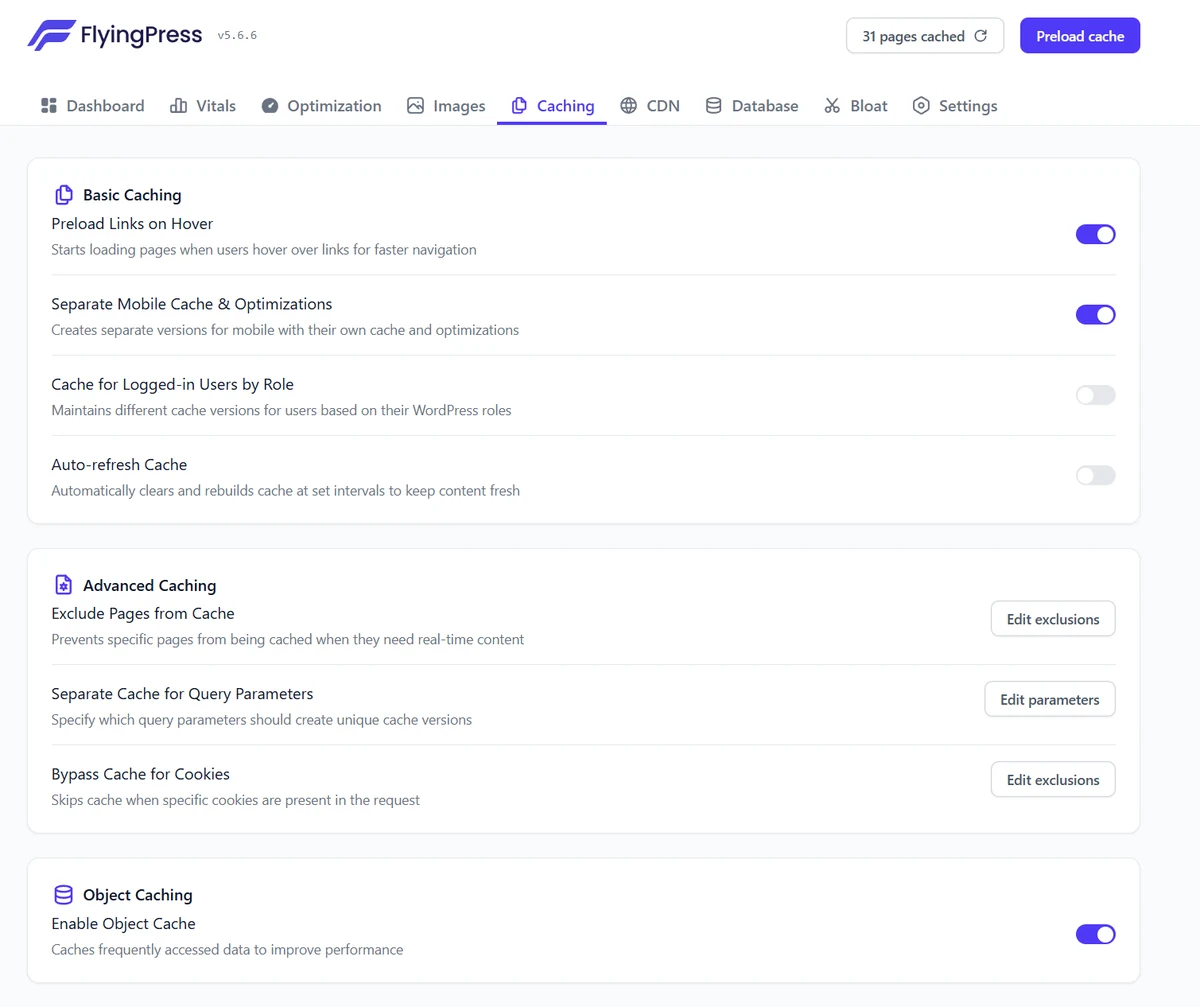
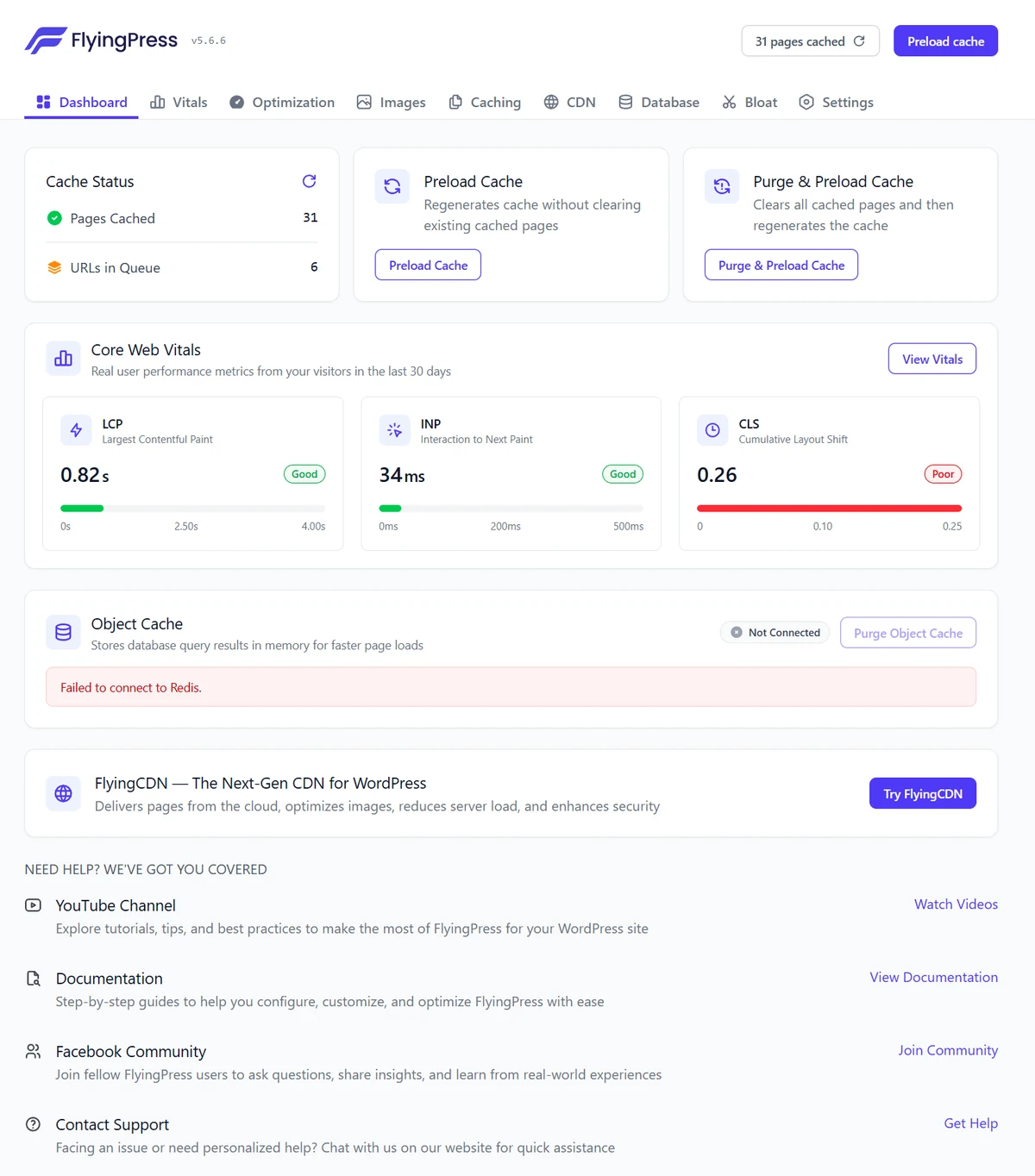
Checked October 24, 2026: FlyingPress 5.6.6 and WP Rocket 3.23.5.1. Screenshots show a supplied FlyingPress configuration, not factory defaults or a migration benchmark. Menu labels and behavior can change between releases.
In this article
Should you switch from WP Rocket to FlyingPress?
Before switching: record the current setup
Map responsibilities—not checkbox names
Deactivate WP Rocket and establish a clean handover
Activate FlyingPress and establish the baseline
Rebuild exclusions and test interactions
Keep Cloudflare, CDN, and object-cache ownership clear
Preload, purge, and measure comparable results
Common migration problems and what to check first
Should you switch from WP Rocket to FlyingPress?
Switch for an identified reason: a reproducible incompatibility, a feature you need, a documented limitation, or a workflow you prefer. Keeping a stable configuration is a sensible outcome too. My FlyingPress vs WP Rocket comparison covers the broader choice.
Write down the result you expect before touching anything. “The mobile menu must respond reliably, with no repeatable loading regression” is testable. “Make everything faster” is a wish wearing a project brief. Neither plugin replacement automatically fixes slow PHP, database queries, or a shipping API that takes several seconds to reply.
Before switching: record the current setup
Take a complete files-and-database backup, and verify how to restore it. Protect staging from public access and indexing. Disable real payments, outbound customer emails, fulfillment, and production analytics there; use synthetic accounts and sandbox gateways.
In Settings → WP Rocket → Tools, use Download Settings, as described in the export instructions. Save screenshots of exclusions, per-page exceptions, and relevant settings too. Keep the export private: WP Rocket documents that it can contain your account API key. It belongs in your recovery records, not a public article or AI prompt.
Record plugin, theme, and PHP versions; host caching; CDN rules; snippets; helper and MU plugins; preload/cron jobs; and custom server rules. Include image optimization, Redis, script unloading, fonts, consent, languages, and currencies. An export cannot capture that entire stack.
Choose representative URLs and journeys. Save screenshots, console/network errors, timings, and cache conditions while the old setup still works. Keep access to the working WP Rocket version and license. My WordPress performance audit checklist helps establish that baseline.
Map responsibilities—not checkbox names
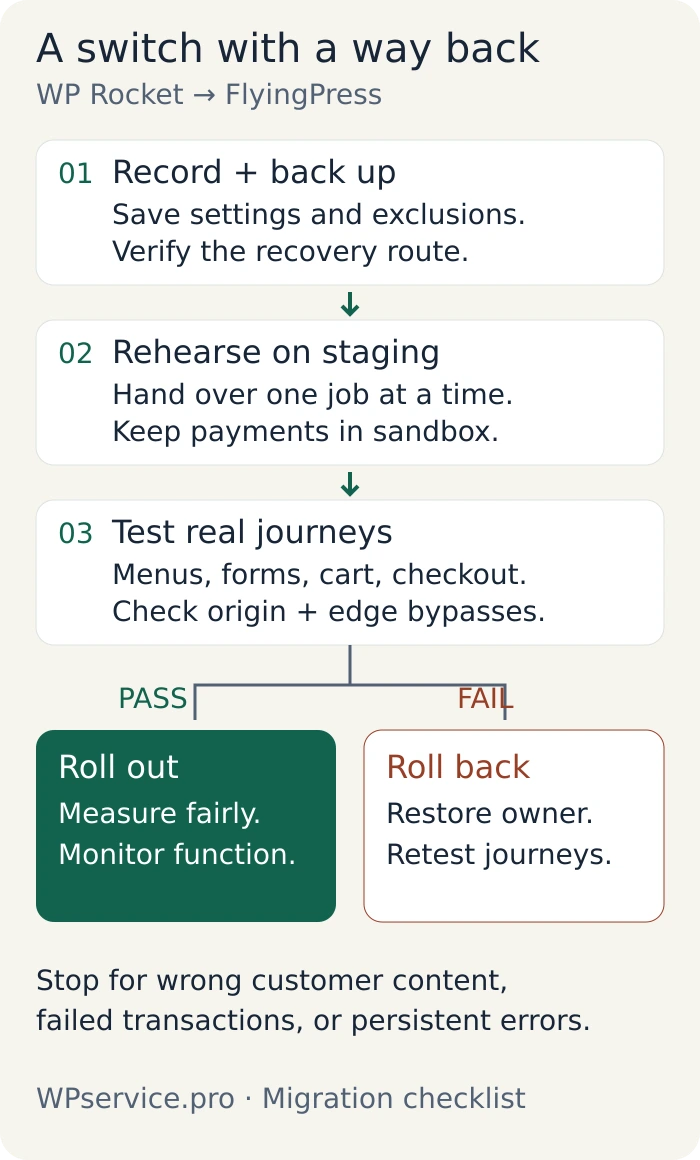
Complete this worksheet for your site. The owners below are examples to replace, not a universal configuration. Two plugins can coexist when their responsibilities do not overlap; two processors rewriting the same script are harder to reason about.
| Job | Current owner | Planned owner | Exclusions/requirements | Test |
|---|---|---|---|---|
| Origin page cache | WP Rocket/host: record | FlyingPress/host: verify integration | Private routes and sessions | Public HIT; private bypass |
| Unused CSS | Record actual tool | One selected tool | Hidden and interactive selectors | Menu, popup, tabs |
| JS delay/defer | Record actual tool | One selected tool | Required scripts and dependencies | First tap, forms, payment |
| Lazy loading | Record actual tool | One selected tool | Above-fold/LCP media | Image arrival and embeds |
| Fonts | Record actual tool | One selected tool | Families, weights, source URLs | Text and layout stability |
| Image conversion | Existing optimizer | Keep initially | Originals and existing rewrites | Images and responsive sizes |
| CDN/HTML edge cache | Existing service/rules | Keep; verify purge connection | Cookie, URL, query bypasses | Updates and private content |
| Redis | Existing integration | Keep initially | One object-cache.php owner | Connection and dynamic data |
| Script unloading | Existing script manager | Keep reviewed rules | Page-specific dependencies | Every affected journey |
Transfer the purpose of an exclusion, then translate its syntax. FlyingPress’s page exclusion field uses plain URL substrings, not regular expressions. Entering / excludes everything. A pattern copied from another plugin may look familiar and still do the wrong job.
Deactivate WP Rocket and establish a clean handover
Rehearse the exact sequence on staging first. Note whether cached HTML points to generated CSS, JavaScript, fonts, or rewritten CDN URLs: old HTML can outlive the files it references.
Deactivate WP Rocket through Plugins → Installed Plugins before activating FlyingPress as the replacement. Then make a deliberate retention decision. Keeping WP Rocket installed but inactive briefly preserves a convenient rollback route; uninstalling is a separate cleanup operation. If choosing immediate removal, do it before the replacement owns shared cache infrastructure, using WordPress administration and the vendor’s uninstall guidance.
That guide also contains broad manual-removal instructions. Do not apply them blindly after another cache plugin is active. The cache directory, advanced-cache.php, and WP_CACHE may now serve the replacement or host. Deferred removal also needs an ownership check; “inactive” does not mean a later uninstall cannot affect shared configuration.
At the transition, clear affected HTML through its actual host/CDN owners. Deactivation is not proof that browser, reverse-proxy, edge, or service-worker caches were cleared. WP Rocket documents different cleanup triggers for different generated files; avoid inventing one universal purge sequence. Check response source, configuration notices, and failed asset requests before continuing. If ownership is unclear, involve the host or vendor.
Activate FlyingPress and establish the baseline
Download FlyingPress from your vendor account or another authorized channel. The installation guide uses Plugins → Add New → Upload Plugin, followed by activation and licensing from FlyingPress → Dashboard. Record the installed version and follow any license prompt shown by that version.
Treat activation as a configuration change, not an empty starting point. Inspect every active setting and any retained configuration before visitors use it. The changelog confirms Core Web Vitals tracking is enabled by default on new installations, but it does not establish the complete 5.6.6 default-toggle inventory. The supplied screenshots show enabled features on one configured site; they do not establish activation defaults.
Establish correct page caching and private-content bypasses first. Temporarily turn off optional transformations that you have not yet validated on staging, then introduce CSS, JavaScript, fonts, and media handling one group at a time. Preserve required exclusions throughout. Use the best FlyingPress settings guide for configuration detail.
Do not bundle Redis activation, image-library recompression, a CDN switch, database cleanup, or every Bloat toggle into this migration. Each is another change to isolate and test.
Rebuild exclusions and test interactions
In 5.6.6, the Optimization tab exposes Remove Unused CSS → Edit includes and Delay All JavaScript → Edit exclusions. The three JavaScript choices are Defer loading, Load when idle, and Load after interaction. The JavaScript documentation explains their different timing and warns about interactive content. Do not assume “delay” means the same behavior in both plugins.
JavaScript exclusion matching checks the script tag, including source, ID, and inline content. It uses case-insensitive partial keywords, without wildcards: use a specific identifier rather than *slider*. Inspect dependencies before narrowing an exclusion. A matching filename alone does not prove the complete interaction is safe.
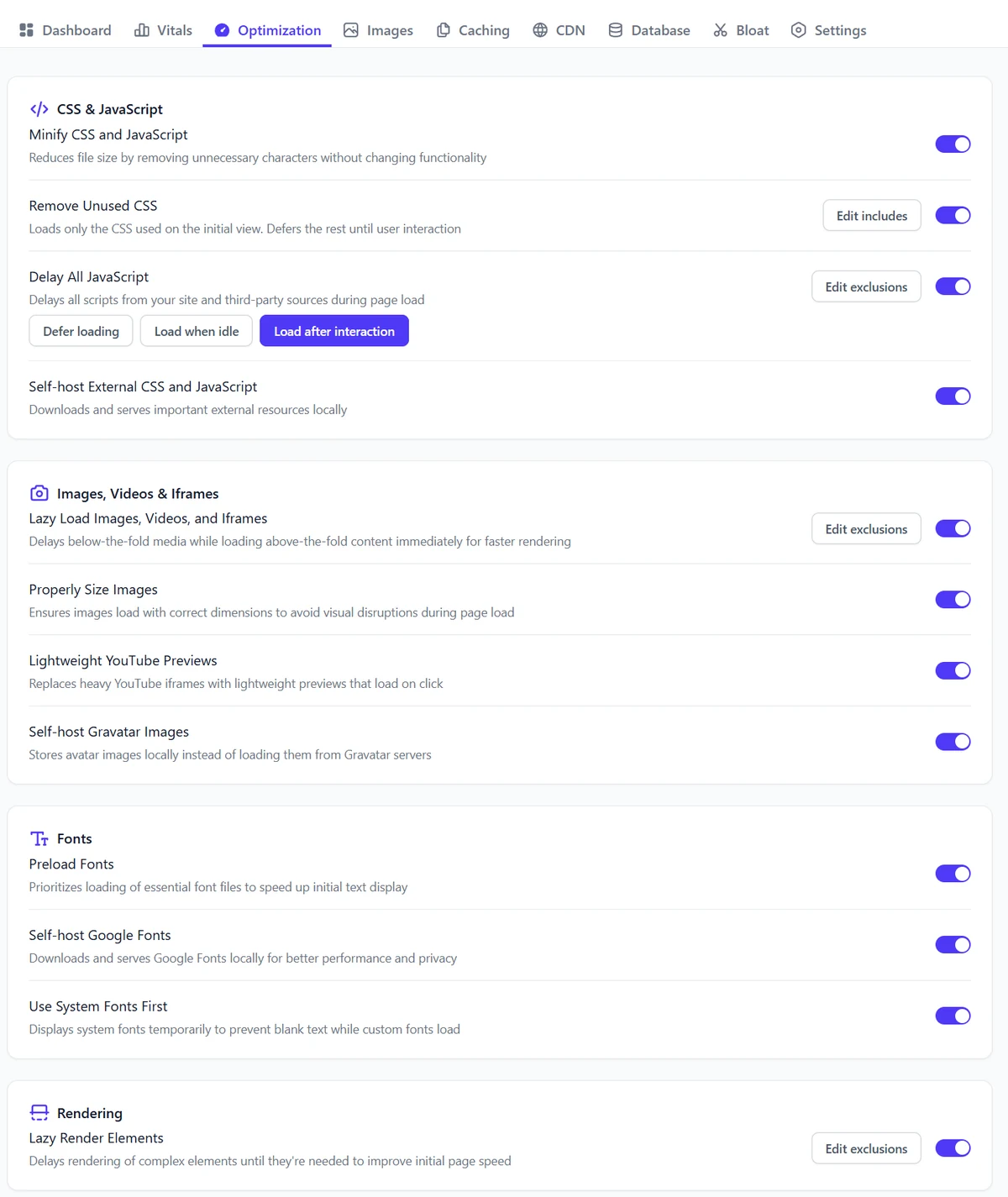
For unused-CSS includes, use CSS selectors, not stylesheet filenames. Check states absent from the first viewport: sticky headers, dropdowns, modals, selected variations, validation messages, and consent panels. The documentation describes remaining CSS loading when idle, while the supplied 5.6.6 UI says after interaction. Test observed behavior in your version; neither description justifies skipping interaction tests.
In Caching → Advanced Caching, review Exclude Pages from Cache and Bypass Cache for Cookies. The cookie field matches cookie names rather than values, with one name per line. Recheck custom membership, language, currency, and account behavior at both origin and edge.
| Journey | States to cover | Pass condition |
|---|---|---|
| Navigation and media | Mobile/desktop; first interaction | Menu, slider, popup, and video work |
| Form and consent | Consent accepted/rejected; invalid/valid input | Validation, submission, and intended tracking behave correctly |
| Product and cart | Guest/account; empty/populated cart; currency/language | Variations, prices, count, drawer, and quantities remain correct |
| Checkout and account | Coupons; shipping/tax; sandbox payment and return | Order completes once; totals and private data remain correct |
A visible payment button is not a completed checkout test. Include the sandbox confirmation/return route, and check the resulting order. My FlyingPress vs WP Rocket for WooCommerce guide expands the store-specific risks.
Keep Cloudflare, CDN, and object-cache ownership clear
Origin page cache stores HTML at your host. Edge HTML cache stores eligible responses nearer visitors. Browser cache stores resources on the visitor’s device. Changing the first layer does not automatically replace or invalidate the others.
Preserve working infrastructure initially, but trace purge synchronization: deactivating WP Rocket may remove a hook that previously refreshed the edge. Test a harmless staging content change and confirm the normal URL updates. If leaving RocketCDN, remove obsolete rewrites and verify asset availability before cancelling anything.
FlyingPress’s direct Cloudflare integration is distinct from FlyingCDN. Its Cloudflare guide requires disabling APO before enabling that integration. Treat this as a separate, planned handover, reconcile existing rules, and verify private-content bypasses and update invalidation. Do not add blanket “Cache Everything” rules. See the CDN and HTML-caching comparison for context.
Persistent object cache stores reusable WordPress data, not finished pages. Keep the existing integration unless replacing it solves a separate problem. FlyingPress’s Redis documentation requires Redis, the phpredis extension, and a writable drop-in; only one object-cache.php owner can operate at a time.
Likewise, keep working image optimization. FlyingPress now includes built-in image optimization, including URL rewriting and optional original deletion. Availability is not a reason to reprocess the library during the cache switch. Retain originals and avoid duplicate processing.
Preload, purge, and measure comparable results
Rebuild affected optimized assets and refresh dependent HTML in the order supported by your stack. Preload eligible public pages, watch queues and origin load, and wait for processing before comparing results. A cache-miss surge can temporarily make a competent configuration look terrible.
FlyingPress distinguishes Preload Cache from Purge & Preload Cache: the first regenerates without first clearing existing pages; the second clears cached pages and rebuilds them. Neither button is a universal instruction to flush every external cache.
Use normal URLs, not only cache-busting queries. Record the document’s HIT/MISS/BYPASS evidence, user state, device, location, versions, and settings. Keep cold and warm results separate. Start with three comparable runs and their median, retain every result, and expand sampling when noisy. Three runs are a practical starting point, not a Google rule.
Measure document TTFB, LCP, layout/interaction diagnostics, and important dynamic requests. TBT is not INP, and a lab improvement does not prove rolling real-user Core Web Vitals have already improved. Speed Analyzer can help investigate bottlenecks; it does not certify checkout correctness. For uncached store delays, see why cart and checkout remain slow after caching.
| URL/journey | Baseline condition/result | New condition/result | Function correct? | Decision |
|---|---|---|---|---|
| Public page, guest | Not measured | Not measured | Not tested | Pending |
| Product → populated cart | Not measured | Not measured | Not tested | Pending |
| Sandbox checkout → return | Not measured | Not measured | Not tested | Pending |
This is a blank worksheet, not performance evidence. Roll out the rehearsed configuration during a monitored window, then repeat the normal-URL and customer-journey checks in the production context with appropriate authorization.
Common migration problems and what to check first
| Symptom | First investigation |
|---|---|
| Broken styling | Old HTML references, failed generated CSS, missing interactive selectors |
| Dead menu, form, or payment UI | Changed delay/defer timing, dependency order, exclusion mismatch |
| Wrong cart, price, or account content | Session bypasses and origin/edge ownership; stop and roll back |
| Missing images or fonts | Old rewritten URLs, missing files, duplicate processing |
| No speed improvement | Wrong bottleneck, unmatched cache states, unfinished processing |
| Old content persists | Host, CDN, browser, or service-worker cache; inspect the normal URL |
| High origin load | Preload queue, optimization jobs, and a surge of uncached requests |
Change the smallest setting supported by the evidence, and retest the same failure. If speed barely moves, revisit why WordPress can stay slow after caching before blaming the new plugin. Blanket exclusions can hide the problem while throwing away the intended benefit.
Roll back safely if the new setup fails
Roll back for wrong customer content, failed forms or transactions, persistent layout damage, an unresolved fatal error, or a significant repeatable regression. Preserve relevant logs, screenshots, and settings first; a recovery should leave useful evidence.
Deactivate FlyingPress as the optimization owner, restore the previous WP Rocket version/configuration through the rehearsed path, and restore required integrations and URL rewriting. Refresh affected stale HTML, regenerate the previous setup’s required assets/cache, and retest normal URLs and customer journeys.
Do not rely on deletion to preserve FlyingPress settings. Its update guide says they survive a manual delete/reinstall, while its uninstall guide says deletion removes configuration and licensing. Those statements conflict. Keep independent records, retain the inactive plugin initially where appropriate, and verify exact-version cleanup with the vendor before removal.
A full database restore is a last resort on an active store: it can erase orders, submissions, or edits made since the backup. Coordinate recovery around live writes. Undoing a cache configuration should not become an accidental business-data rollback.
My verdict
Switch when FlyingPress solves an identified need and survives both functional and performance testing. Keep the working setup when it does not. If you want the diagnosis, migration, and verification handled together, my WordPress speed optimization services cover that work.
The migration is finished when the website still does its job. Activating the new plugin takes a click; avoiding that awkward checkout explanation takes the checklist.
Frequently asked questions
Can WP Rocket and FlyingPress run together?
Do not use both as active page-caching and optimization owners during this migration. Their responsibilities overlap, making generated assets and troubleshooting harder to follow. An installed but inactive WP Rocket copy can remain temporarily for rollback. Other tools can stay when their individual features have clearly separate, tested responsibilities.
Can I import WP Rocket settings into FlyingPress?
The official material checked for this guide does not establish a supported WP Rocket-to-FlyingPress settings converter. Keep WP Rocket’s export for recovery and reference, and map the configuration manually. Verify matching syntax and retest each exception. A generic import feature is not evidence that another plugin’s export is compatible.
Should I delete WP Rocket before installing FlyingPress?
Deactivate WP Rocket before FlyingPress takes over. Deletion is a separate choice: retaining the inactive plugin briefly can simplify rollback, while uninstalling performs cleanup. If you uninstall later, first verify whether the selected version’s cleanup could affect shared configuration now owned by FlyingPress or the host. Do not delete shared files blindly.
Do I need to change Cloudflare or buy FlyingCDN?
No CDN purchase is required merely to replace a cache plugin. Keep working delivery infrastructure and verify its purge connection. If you deliberately choose FlyingPress’s direct Cloudflare integration, follow its APO and rule requirements as a separate change. FlyingCDN and the direct Cloudflare integration are different services/configurations.
Should I keep Perfmatters, my image optimizer, or Redis?
Keep useful features with separate responsibilities, and review overlaps individually. For example, existing script-unloading rules may remain while another tool owns JavaScript delay. Keep working image processing and object caching initially. FlyingPress’s Redis option must not overwrite a working competing drop-in, and an enabled toggle alone does not prove a successful Redis connection.
Why did the site break after switching?
Common suspects include stale HTML referencing removed assets, changed JavaScript timing, CSS missing from interactive states, and exclusions that no longer match. Start with the failing request or interaction, then change one relevant setting. Wrong customer content or failed transactions warrant stopping and rolling back rather than experimenting on visitors.
Will FlyingPress automatically improve my PageSpeed score?
No. Results depend on the bottleneck, configuration, theme, plugins, content, infrastructure, and test conditions. Confirm functional correctness, then compare equivalent measurements. Do not treat one higher lab score as proof that every page is faster, checkout works, or rolling real-user Core Web Vitals have already improved.
How do I switch back without losing new orders?
Prefer a rehearsed plugin/configuration rollback that preserves the live database. Restore the old optimization ownership and integrations, refresh dependent caches, and verify the customer journey. If a wider restore becomes necessary, coordinate it around orders and other writes since the backup; do not overwrite production data simply to undo cache settings.
Founder of WPservice.pro
Dalibor is a master of web excellence. With a Bachelor of Science (BS) in civil engineering, Dalibor had an unusual road to end up in IT. Cultivating deep expertise in WordPress website speed optimization, meticulous maintenance, development, and search engine optimization (SEO) while preserving his engineering approach to problem-solving.
Having completed over 90 projects and achieved a top-rated status (on Upwork) in the highly competitive digital niche, Dalibor is a proper authority on enhancing performance and ensuring websites look exceptional and perform flawlessly.
Dalibor is a published writer and an avid learner who continually explores and embraces the latest digital trends. With a commitment to quality and a keen eye for detail, Dalibor is your trusted guide to achieving web success.
Founder of WPservice.pro
Dalibor is a master of web excellence. With a Bachelor of Science (BS) in civil engineering, Dalibor had an unusual road to end up in IT. Cultivating deep expertise in WordPress website speed optimization, meticulous maintenance, development, and search engine optimization (SEO) while preserving his engineering approach to problem-solving.
Having completed over 90 projects and achieved a top-rated status (on Upwork) in the highly competitive digital niche, Dalibor is a proper authority on enhancing performance and ensuring websites look exceptional and perform flawlessly.
Dalibor is a published writer and an avid learner who continually explores and embraces the latest digital trends. With a commitment to quality and a keen eye for detail, Dalibor is your trusted guide to achieving web success.