


So, do you think your WordPress site is fast enough? Think again. Unlike the story where the tortoise wins the race with the rabbit, in this realm, the rabbit always wins.
In the wise words of Red Foreman: “Don’t be a dumbass!” Let your website be the rabbit. Or at least try to.
In this comprehensive guide, I’ll cover everything you need to know about Perfmatters, its settings, and how it compares to other plugins like WP Rocket or Asset CleanUp.
*It’s been a while since I published this article about Perfmatters settings, and as Perfmatters devs were busy meanwhile, I’ve updated it to keep it current.
Table of Contents
- What is Perfmatters?
- Perfmatters Settings: A Detailed Overview
- Other Perfmatters Settings
- Preloading — enhancing speed even more
- Understanding Perfmatters “Cloudflare Early Hints” and “Speculative Loading” Settings
- Optimizing Lazy Loading in Perfmatters settings
- Fonts Options in Perfmatters settings
- Database Optimization — An important part of the Perfmatters settings
- Perfmatters vs. WP Rocket
- The Verdict on Perfmatters vs WP Rocket
- Expert Tips for Optimizing Perfmatters settings
- Conclusion—Perfmatters matters
- Now available in combination with the AI Assets Scanner for fully automatic asset unloading.
- FAQ
What is Perfmatters?
Perfmatters is a lightweight WordPress performance plugin designed to speed up your site by disabling unnecessary features, optimizing scripts, and reducing bloat. It’s like the Swiss Army knife for WordPress speed optimization. And as every army requires, let’s say that Perfmatters has some big guns.
Unlike many other plugins, Perfmatters focuses on simplicity and effectiveness, making it a top choice for beginners and advanced users.
Why Speed Matters, you might ask?
And why are Perfmatters settings so important? Before we visit Perfmatters settings and comparisons, let’s answer this: Why should you care about your site’s speed? According to Google, even a two-second delay in page load time can significantly drop conversions. We developed our Speed Loss Calculator tool to help you see that visually. Fast sites lead to happy visitors, better SEO rankings, and more sales.
And if speed matters, Perfmatters. And Perfmatters settings matter.
Why do I load Perfmatters settings on each of my speed optimization projects?
Because I’m not a dumbass. I like my websites fast. For a successful speed optimization project, you need at least four layers:
- Solid infrastructure (fast web server/CDN)
- Great cache plugin (FlyingPress, WP Rocket, Litespeed)
- Excellent code manipulation/unloads tool (Perfmatters, Asset CleanUP, AI Assets Scanner)
- Image optimization tool (EWWW IO, ShortPixel, Imagify)
Each project I worked on had some combination of these four layers. If you like your website fast, so will you.
You can use every combination of web hosts, cache plugins, and image optimization tools imaginable, but you’ll always need an easy code unloader. There are only two on the market that tick every box I need. Today, I’m writing about the Perfmatters.
Perfmatters Settings: A Detailed Overview
As more than just a one-trick pony, Perfmatters offers plenty of features designed to improve your site’s speed and performance. Here are some of the highlights:
General Perfmatters Settings
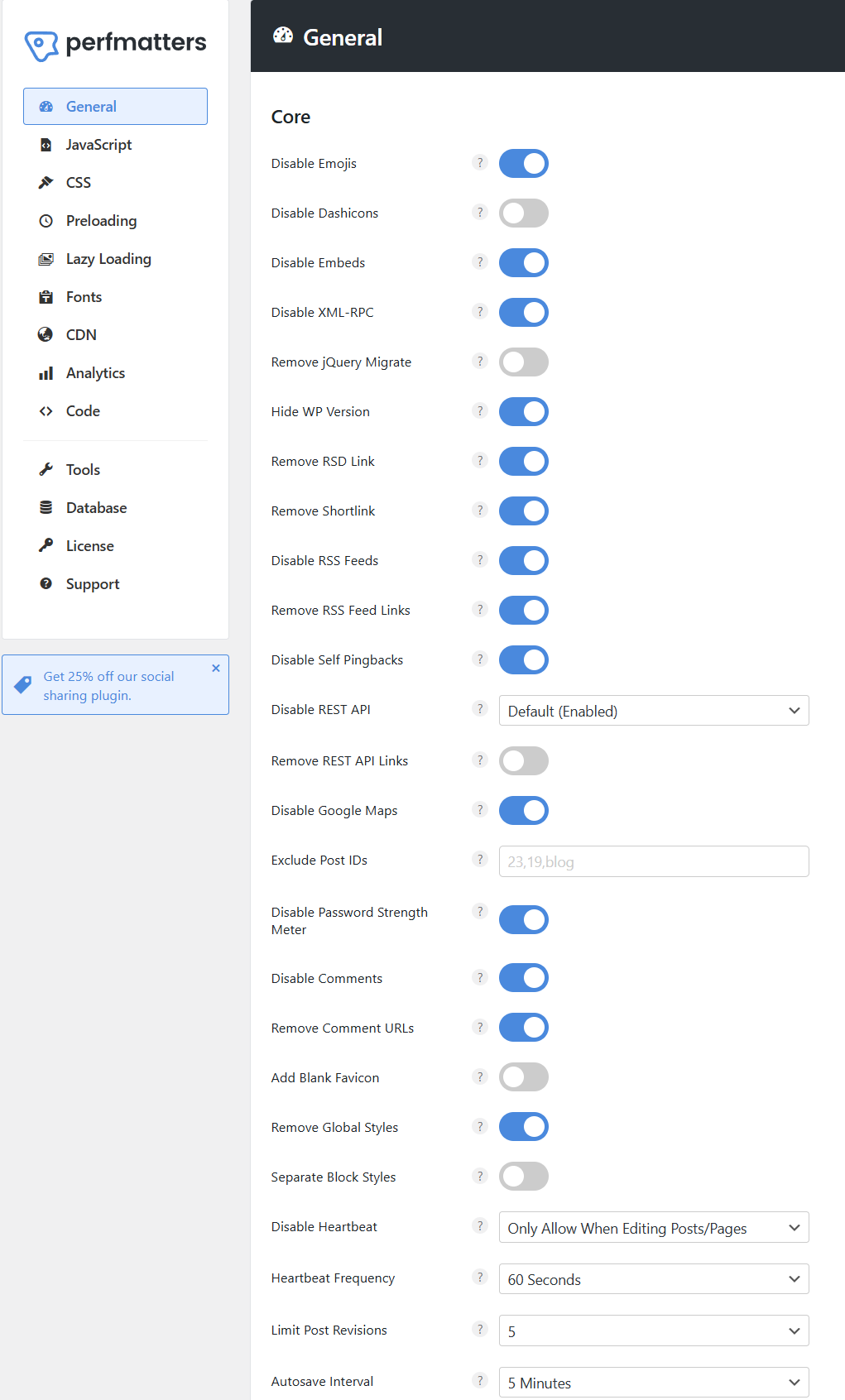
Here are the settings I import (Tools/Import) by default on most websites. This combination performs best in my experience.
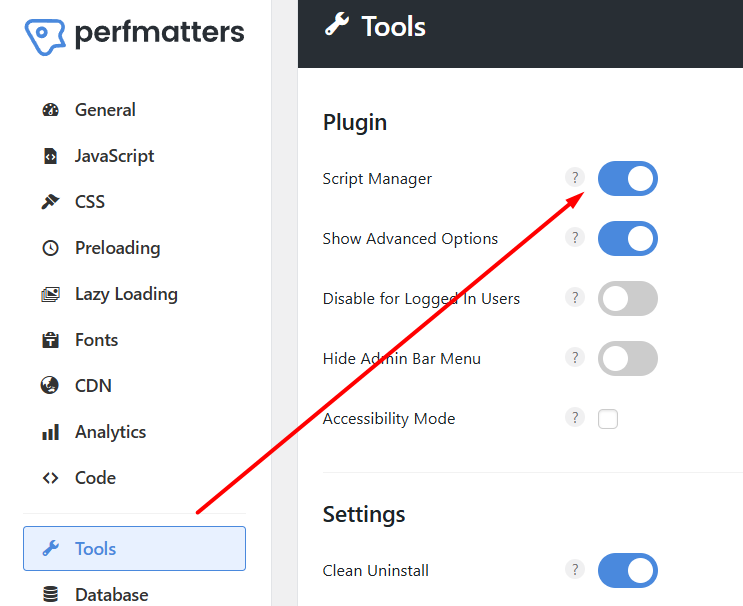
Perfmatters Tools Settings — Script Manager
One of the most important features of Perfmatters settings is the Script Manager function.
Script Manager in Perfmatters settings allows you to disable JavaScript and CSS per page. Why load unnecessary scripts site-wide when you only need them on specific pages? This granular control can drastically reduce your page load times.
How would you use it? Go to Perfmatters settings -> Tools section and toggle on the Script Manager. Now that you have activated the Script Manager functionality, you still have to navigate to a specific page/post and add “?perfmatters” at the end of your URL. Like this: “https://wpservice.pro/blog/?perfmatters“
That will activate the Script manager on that page.
Sure, you can group the CSS/JS files on your browser console/network tab and unload them by hand, but Perfmatters makes this an easier task—slide a toggle by the script’s name and test it.
While we are on the subject of tests, you can disable the Perfmatters altogether by adding “?perfmattersoff” to the end of the URL. That is particularly useful when debugging something and can save you time.
Furthermore, all code files are grouped by their dependencies, so you can unload the entire “Animate It!” plugin files on specific pages where they are not needed.
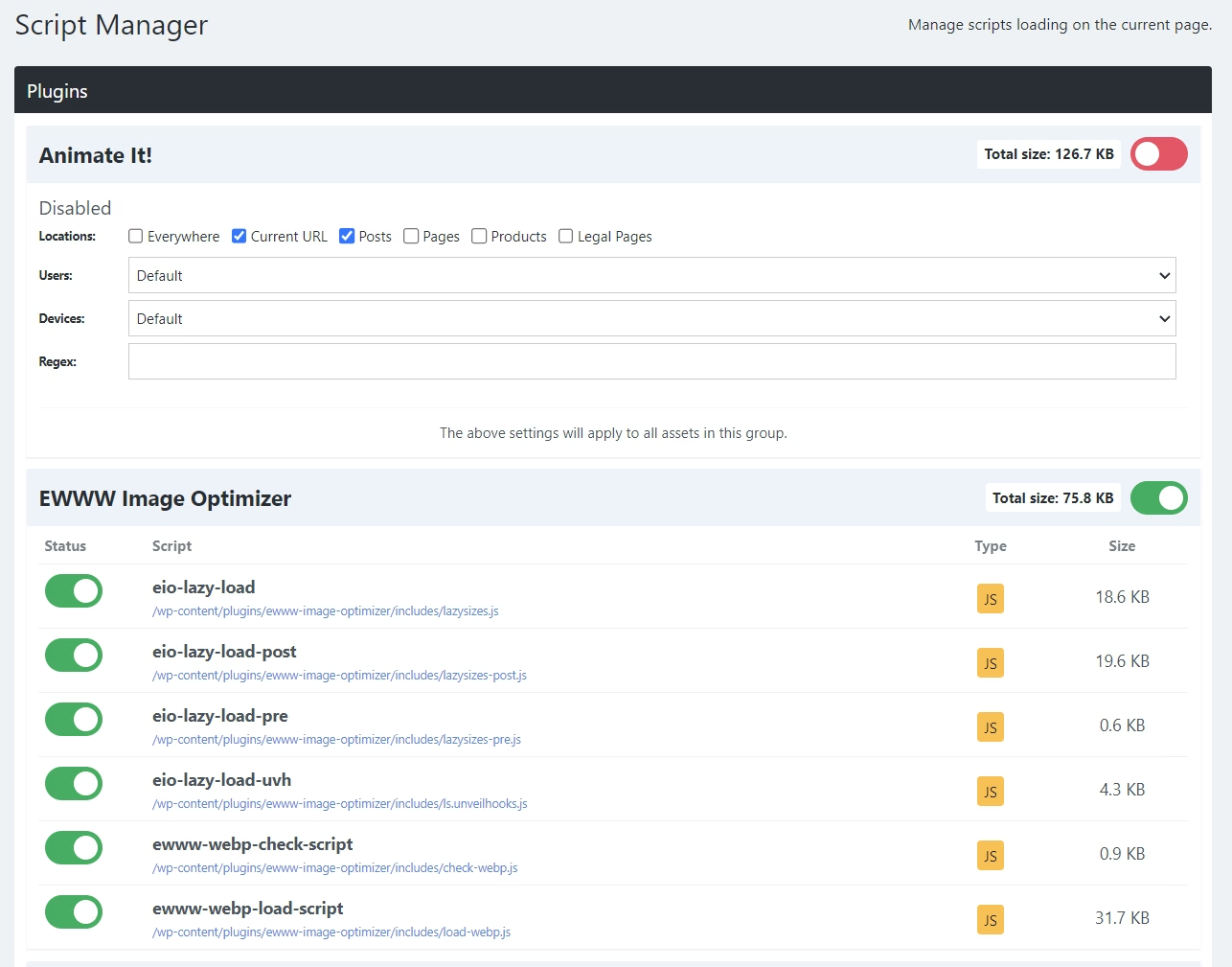
Naturally, you can use a more granular approach and unload only a certain CSS/JS file from a specific page. Whatever you do, properly test your website afterward, as unloading code can break your website’s visuals and functionality. Depending on what you’ve unloaded.
What about those who don’t have the knowledge or the will to do this?
It’s a legitimate question. Not all of us have the will or expertise to do asset unloading, and most of us don’t have the time to do it across the entire website. Here’s where AI Assets Scanner comes into play — it does all the work for you. Well, almost all, you still need to check and verify that everything is the way it should be.

Now available in combination with the AI Assets Scanner for fully automatic asset unloading.
Other Perfmatters Settings
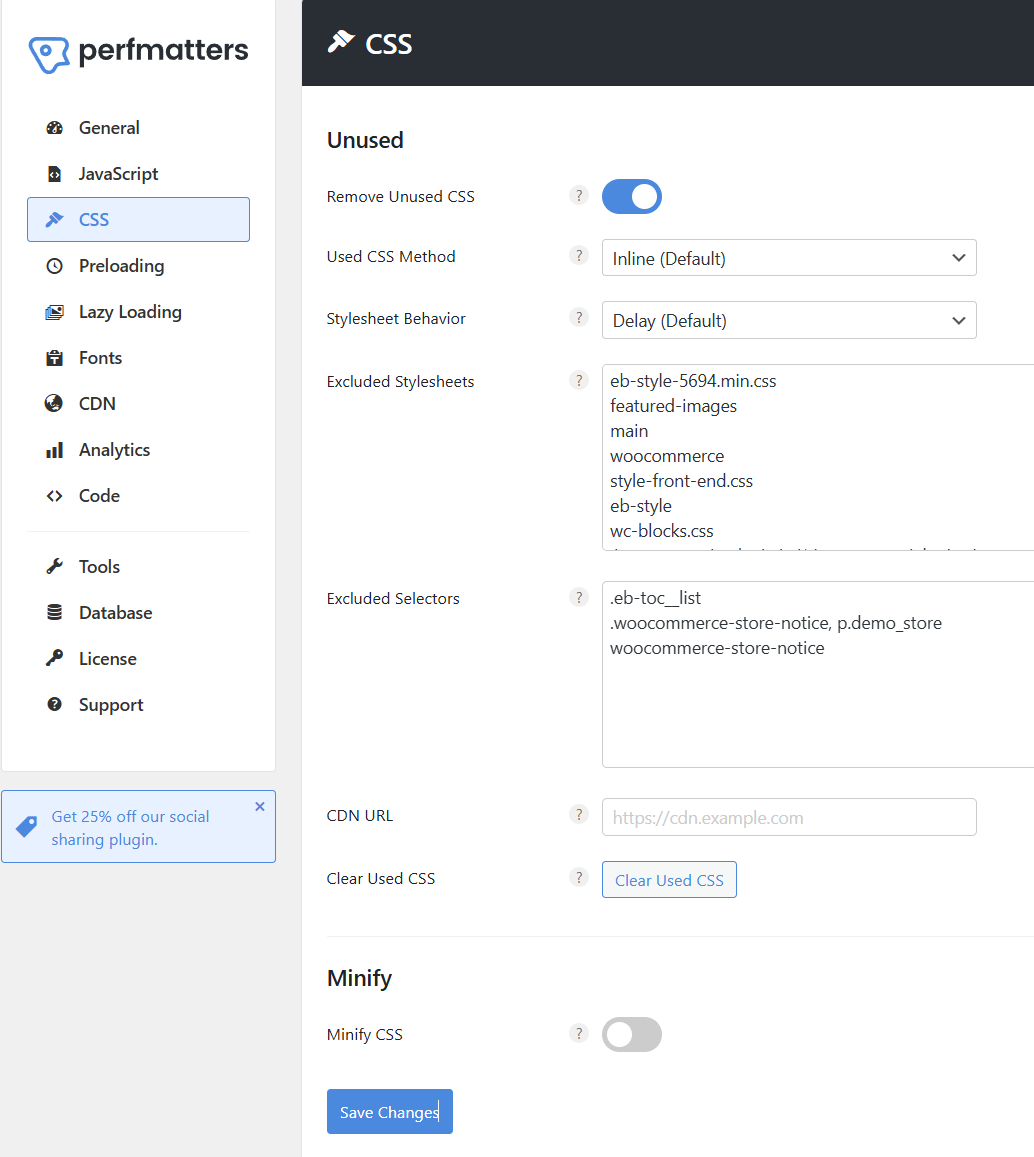
Here is another important segment of Perfmatters optimization. I usually leave this part to the cache plugin (WP Rocket/FlyingPress/Litespeed), but Perfmatters will be happy to do it if they don’t deliver. In this example, I’ve left JS code handling to the cache plugin and turned on the CSS optimization. You can see the list of excluded style sheets so my website can operate flawlessly.
The JS and CSS each got their sidebar link for their respective functionality.
What separates Perfmatters from the rest of the herd is its default Delay JS feature. In Perfmatters settings, you can populate the list of the JS files you’d like to delay, and not delay all, and exclude. It’s the opposite approach, and it works well if you have many JS files to exclude.
This way, you don’t have to exclude anything. If it’s not specifically entered, it’s not delayed.
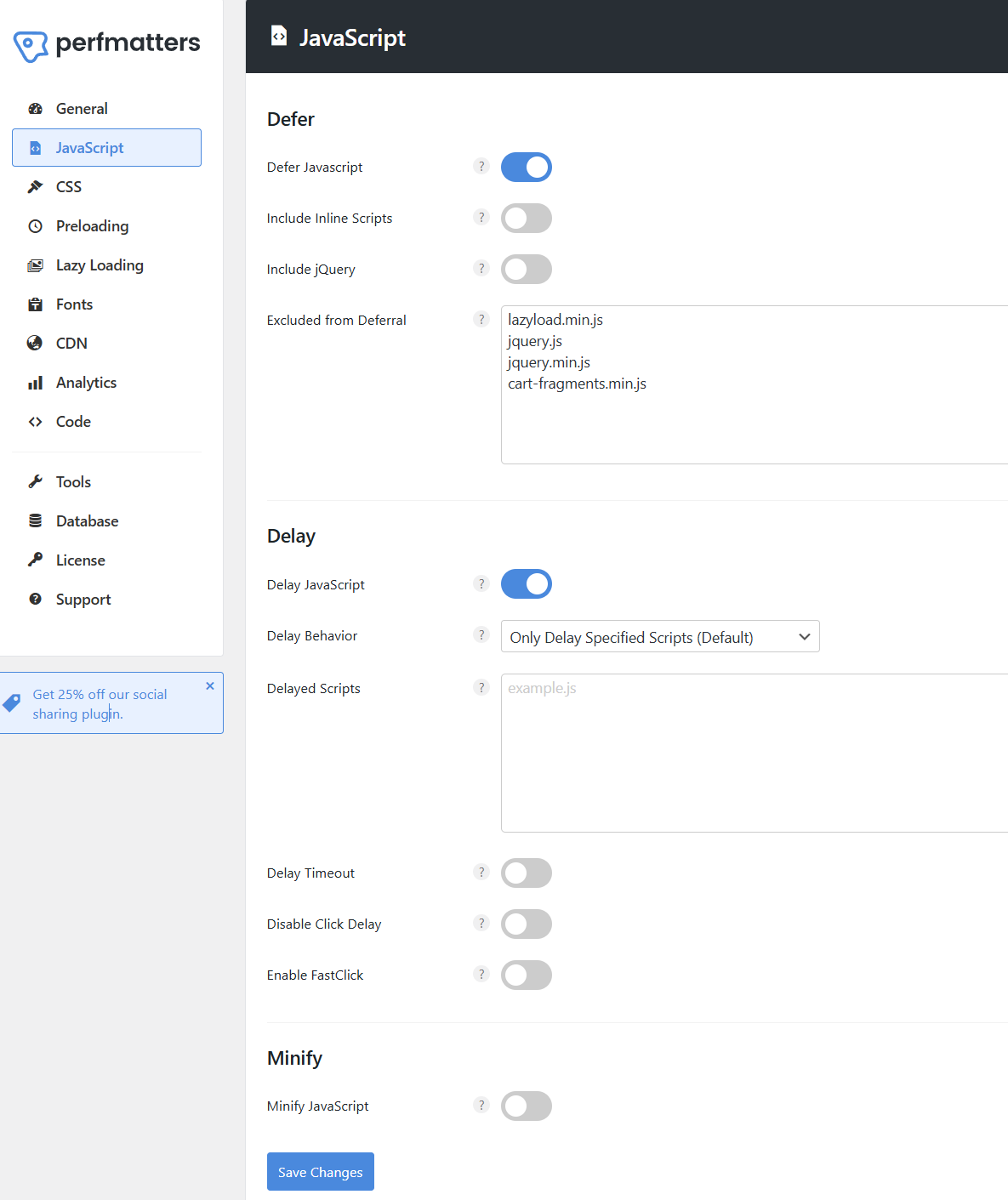
That said, there is still an option to delay all JS and exclude specific troublemakers, which I use more often.
Preloading — enhancing speed even more
In this section of Perfmatters settings, you can preload specific images/fonts/scripts/etc. to a particular page and device (Mobile or desktop). If you’d like this to be a device-specific preload, you’ll need to separate cache files for mobile devices. Something that WP Rocket set as a default in its update (3.16).
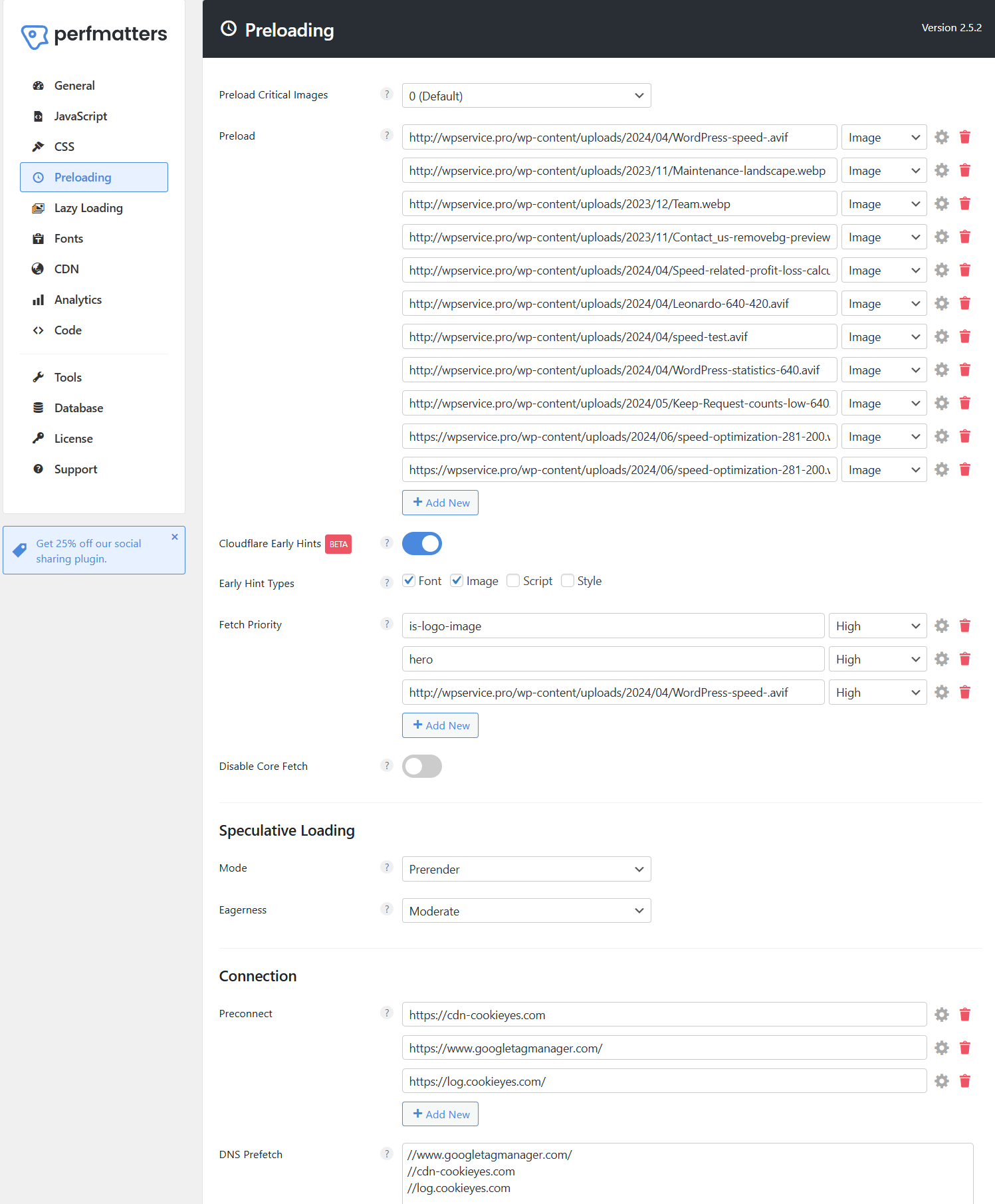
As you can see in the image above from Perfmatters settings, I have many images and a font preloading on specific pages.
I’ve also set a few Fetch Priority high images, preconnected to a few outside DNS, etc. There are a lot of Perfmatters settings, and in this segment, we covered just a few. A tiny drop in the ocean. But hey, you gotta start somewhere.
Remember, you should preload “above-the-fold” images, not all. Preloading every image will harm your website’s speed, as most images (all below the fold) should be lazy-loaded for maximum performance. The same goes for fonts, preconnects, and prefetch—only a few selected ones.
You may have noticed two relatively new functionalities here, Cloudflare Early Hints and Speculative Loading.
Understanding Perfmatters “Cloudflare Early Hints” and “Speculative Loading” Settings
Perfmatters recently added two powerful optimization features that work closely with Cloudflare and modern browsers: Early Hints and Speculative Loading.
These Perfmatters settings options are designed to boost perceived performance and reduce the time it takes for critical resources (like fonts and hero images) to start loading.
Cloudflare Early Hints (Beta)
What it does:
Early Hints (status code 103) allow Cloudflare to preload key resources before the main HTML response is fully delivered. This means that browsers can begin fetching your most important assets — like fonts or hero images — milliseconds earlier.
Settings shown in the screenshot:
- Early Hint Types:
- ✅ Font → Instructs Cloudflare to preload web fonts.
- ✅ Image → Prioritizes key images (logo, hero, LCP image).
- ☐ Script / Style left disabled on my website → Keeps JS and CSS loading under standard optimization logic to avoid layout shifts.
- Fetch Priority:
This section allows you to define specific resources to prioritize.is-logo-image→ Marks your logo as a high-priority visual element.hero→ Targets the hero (largest above-the-fold image) for preloading.https://wpservice.pro/wp-content/uploads/2024/04/WordPress-speed-.avif→ A direct reference to a static asset (in this case, the hero image file) is given High priority.
Disable Core Fetch:
If enabled, it disables Perfmatters’ internal prefetch logic — useful only for troubleshooting. It’s turned off by default, and it should stay that way for most setups.
Why it matters:
Activating Early Hints can improve the Largest Contentful Paint (LCP) metric and Time to First Byte (TTFB) by letting browsers start fetching critical elements early.
When used with Cloudflare’s edge network, this essentially gives your visitors a “head start” in loading visible content.
Speculative Loading
What it does:
Speculative Loading instructs the browser to preload or prerender likely next pages based on user behavior. When users hover over or are about to click a link, the next page begins preloading in the background.
My Settings:
- Mode: Prerender
Loads the full next page (HTML + assets) in the background before a click happens.
It’s the most aggressive and effective mode — but should be used carefully to avoid unnecessary bandwidth use. - Eagerness: Moderate
Controls how aggressively Perfmatters predicts which pages users will visit next.- Conservative → Minimal background activity.
- Moderate → Balanced between speed and resource usage.
- Eager → Preloads as soon as the cursor or viewport suggests user intent.
Why it matters:
By the time a user clicks a link, the next page can load almost instantly. This feature is especially powerful for blogs, documentation sites, and product pages where users frequently navigate between internal links.
In short:
- Cloudflare Early Hints = Faster first paint.
- Speculative Loading = Near-instant navigation.
Used together, they optimize both perceived and real performance — giving your site that “instant-load” feel, especially when combined with a CDN like Cloudflare and a lightweight stack (e.g., GeneratePress + Perfmatters + WP Rocket).
Optimizing Lazy Loading in Perfmatters settings
For a while, Perfmatters settings had the best lazy loading functionality, especially on the CSS background images. The rest of the plugins have picked up the slack, but I still love using lazy loading in Perfmatters. It works out of the box for most images. It’s easy and powerful, and you can exclude images directly or by a parent selector.
Perfmatters offers one of the cleanest and most efficient implementations of Lazy Loading in WordPress.
It helps delay non-critical images, iframes, and containers until the user actually scrolls to them — drastically improving initial load time, Core Web Vitals, and perceived speed.
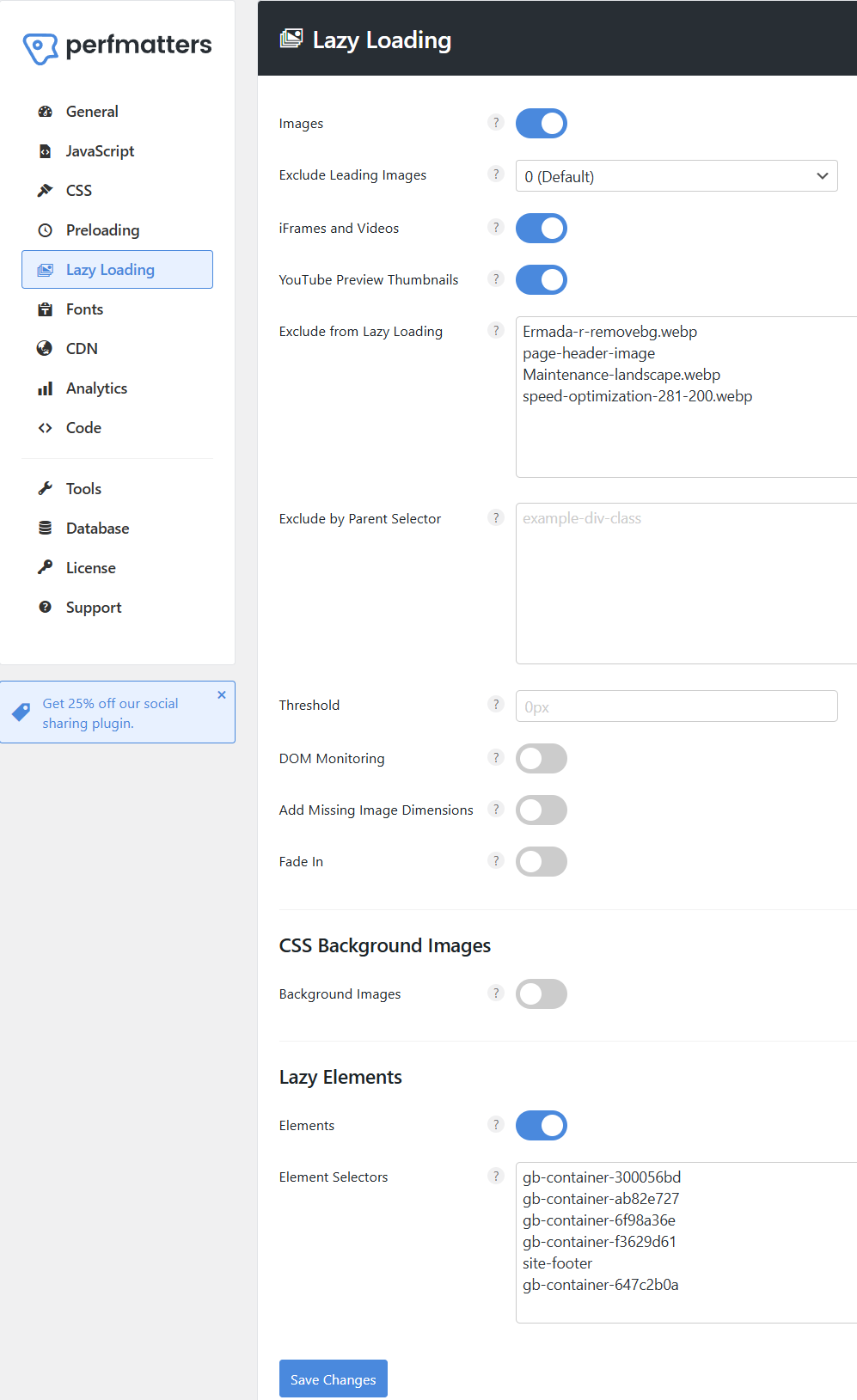
Images, subsection of Lazy loading Perfmatters settings
Enabled: ✅
When turned on, all images below the visible viewport load only as the visitor scrolls down.
This cuts down on initial page requests and bandwidth, leading to faster LCP and lower server load.
Exclude Leading Images
Setting: 0 (Default)
This controls how many images at the top of the page are excluded from lazy loading.
0means every image will be lazy-loaded.- You can set
1or2to load the first few images (like your logo or featured image) immediately for faster visual rendering.
iFrames and Videos in Perfmatters settings
Enabled: ✅
Defers loading of embedded content such as YouTube, Vimeo, or other iframes until they enter the viewport.
This helps avoid long render-blocking chains caused by heavy video scripts.
YouTube Preview Thumbnails
Enabled: ✅
Instead of loading the full YouTube player on page load, Perfmatters displays a static thumbnail.
The player loads only when the visitor clicks Play — saving up to several hundred kilobytes per video embed.
Exclude from Lazy Loading
This field lets you manually list files or class names that should never be lazy-loaded.
In my example:
Ermada-r-removebg.webp
page-header-image
Maintenance-landscape.webp
speed-optimization-281-200.webp
These are key hero or above-the-fold visuals that should load immediately to ensure a stable layout and proper LCP scoring.
Exclude by Parent Selector
Useful when you need to exclude all images inside a specific container (for example, a slider, hero block, or logo carousel).
You can input the parent CSS selector (like .homepage-slider) here.
Threshold
Default is 0px.
This defines how early an image should start loading before it enters the viewport.
For example, setting 200px means an image will begin loading when it’s 200px below the visible area — improving perceived smoothness during scroll.
DOM Monitoring
Disabled by default.
Enable this only if your site dynamically injects content via JavaScript (like infinite scroll). It ensures new images added after page load are also lazy-loaded.
Add Missing Image Dimensions
When enabled, Perfmatters will automatically inject missing width/height attributes into <img> tags.
This helps prevent layout shifts and improves Cumulative Layout Shift (CLS) scores.
Fade In
Adds a subtle fade animation when images appear as the user scrolls.
Purely cosmetic — it doesn’t affect speed but enhances perceived smoothness.
CSS Background Images
Setting: Disabled
Perfmatters can lazy-load background images defined in CSS.
It’s best left off unless you specifically need it for large hero backgrounds using background-image: properties.
Lazy Elements
Enabled: ✅
This feature goes beyond images — it lazy-loads entire containers or sections based on selectors you define.
In the example:
gb-container-300056bd
gb-container-ab82e727
gb-container-6f98a36e
site-footer
These are block-level elements (from GenerateBlocks or similar) that can safely load after the main content.
Tip: Use this for heavy sections like testimonials, large footers, or secondary blocks that aren’t visible right away.
Recommended Setup (for Most WordPress Sites)
| Option | Recommended |
|---|---|
| Images | ✅ On |
| Exclude Leading Images | 1 or 2 |
| iFrames & Videos | ✅ On |
| YouTube Thumbnails | ✅ On |
| Exclude from Lazy Loading | Hero / Logo / Above-the-fold |
| CSS Background Images | ❌ Off |
| Lazy Elements | ✅ On (footer + heavy blocks) |
In Short
Perfmatters’ Lazy Loading is built for precision, not just delay.
It allows you to choose what loads instantly and what can wait, striking the right balance between speed and stability.
When paired with a CDN and properly excluded hero elements, it can shave hundreds of milliseconds off your LCP score and make your pages feel snappy and responsive.
That’s why I consider lazy loading to be one of the most important Perfmatters settings.
Fonts Options in Perfmatters settings
Honestly, I use the fonts section the least in Perfmatters. I usually switch on Local Google Fonts and Display Swap, but this does not work on most websites. If the plugin is responsible for the font display option, this will usually not work. You’ll have to find the responsible CSS file and do it manually.
If you toggle on Advanced options, you have a few more options, but I don’t use them much either.
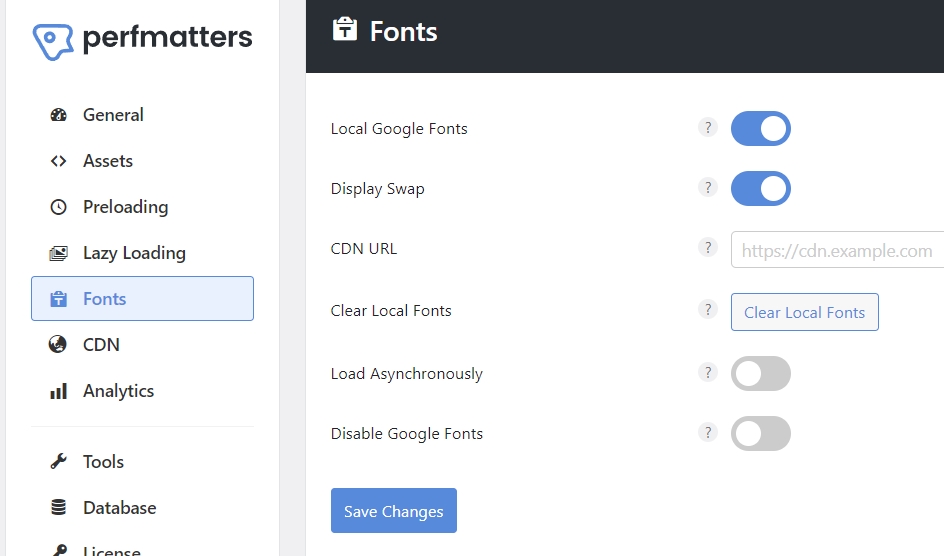
I guess this is okay for basic font handling, but if you’d like to explore fonts more deeply, you’ll have to use a tool like OMGF.
Database Optimization — An important part of the Perfmatters settings
Perfmatters offers basic database optimization in the way we are already used to on WP Rocket, WP-Optimize, or similar plugin solutions—simple and effective.
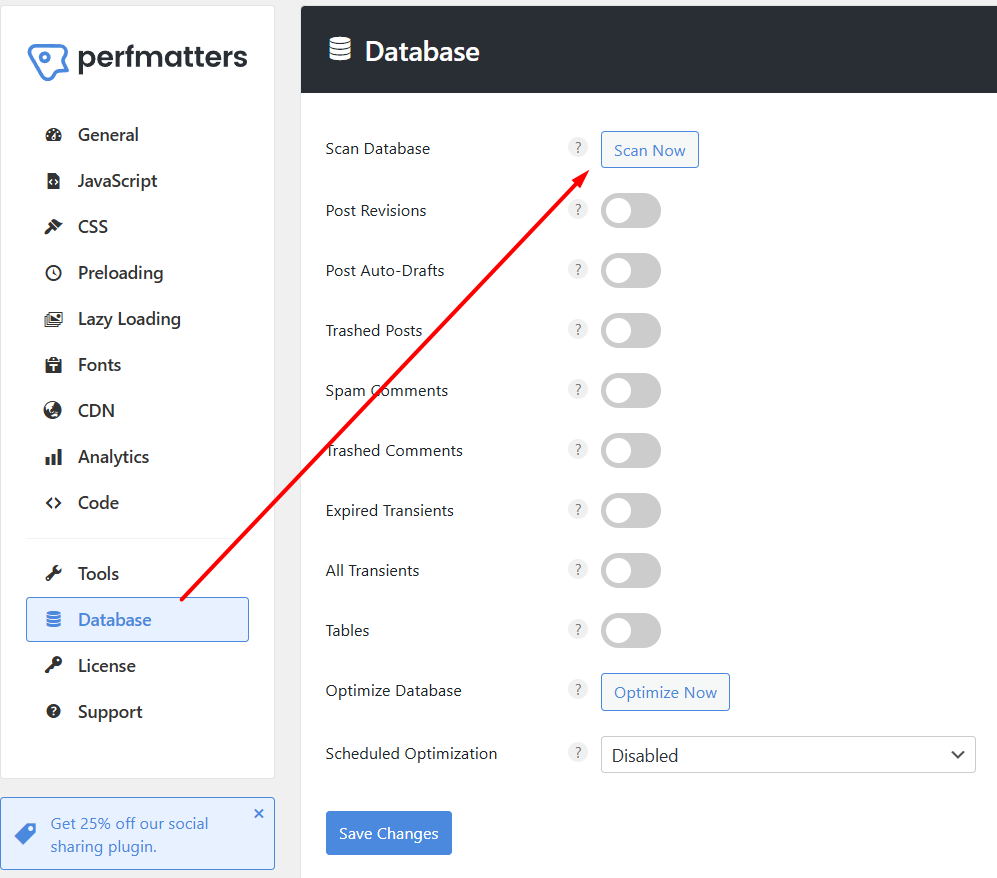
I hope they add the autoload size and information soon, as the wp-options table autoload size is database-related and important for the website’s performance. Unless you haven’t done this for a long time or have a very large blog with 5-digit revisions, this is not crucial, but still, every millisecond counts.
Do it once in a while. Hit the “Scan Now” button, toggle the issues, and hit the “Optimize Now” button. You can also enable “Scheduled Optimization,” which allows you to schedule regular database cleanups, ensuring your site remains lean and fast. This feature is particularly useful for sites with a lot of content or frequent updates.
You don’t have to do it here if you have already done this on another plugin (WP Rocket). The same goes for the rest of the options; duplicating them will not increase your website speed.
Perfmatters vs. WP Rocket
Regarding WordPress speed optimization, Perfmatters and WP Rocket are often mentioned in the same breath. But how do they compare? Let’s break it down.
First, I’d like to state that Perfmatters does not offer caching capabilities; it’s not a cache plugin, while WP Rocket does. They have many of the same functionalities, but this is the one major difference.
They are both excellent tools: WP Rocket for caching and Perfmatters for code unloads, as well as other valuable Perfmatters settings. Both offer a lot more.
Furthermore, they are both veterans of speed optimizations. They have been around for a long time and are in excellent compatibility. If you enable one major function, like Remove Unused CSS on Perfmatters, WP Rocket will warn you that the same option is being used on Perfmatters. Not all options are like that, so keep in mind not to duplicate the same functionality (for example, don’t turn on lazy load on both plugins).

They complement each other nicely; if possible, use them both. If, for some reason, your website does not respond well to WP Rocket Delay JS or Remove Unused CSS, use their Perfmatters counterparts. If lazy loading is not correct on one, use the other.
Perfmatters
- Lightweight: Perfmatters is designed to be lightweight and fast, focusing on disabling unnecessary features and optimizing scripts.
- Granular Control: The Script Manager allows granular control over which scripts load on which pages.
- Database Optimization: Perfmatters offers robust database optimization features, including scheduled cleanups.
WP Rocket
- All-in-One Solution: WP Rocket is an all-in-one caching plugin that offers a wide range of features, including page caching, database optimization, and lazy loading.
- User-Friendly: WP Rocket is known for its user-friendly interface and comprehensive support.
- Higher Price Point: WP Rocket is pricier than Perfmatters, which may be a consideration for budget-conscious users.
The Verdict on Perfmatters vs WP Rocket
If you’re looking for a lightweight, highly customizable solution, Perfmatters is an excellent choice. Perfmatters settings have many functionalities you can tinker with. And they actually matter. However, WP Rocket might be the way to go if you want an all-in-one solution with robust support.
I’d add that for best results, and when possible, use both of them.
If you’d like to learn more about caching tools, refer to our article on the 3 Best Caching Plugins For WordPress.
Expert Tips for Optimizing Perfmatters settings
Optimizing your Perfmatters settings can feel like an art form, but with these expert tips, you’ll be a maestro in no time.
Use the Script Manager Wisely
Start with the Script Manager unloads. But don’t go overboard with it. While disabling everything in sight is tempting, test your site thoroughly to ensure that essential functionalities aren’t affected.
Enable Lazy Loading
If your site contains many images and videos, enabling lazy loading can significantly reduce load times. This is a simple setting that can yield substantial results.
Optimize the JS and CSS code section
If done correctly, this can bring the biggest speed gains. However, it involves many tests and many hours of work (depending on the website) to get it right.
Schedule Regular Database Cleanups
A clean database is a fast database. Schedule regular cleanups to keep your site running smoothly. This is especially important for sites with a lot of traffic and content updates.
Conclusion—Perfmatters matters
If you’re serious about speeding up your WordPress site, Perfmatters is a tool you can’t afford to ignore. Its lightweight design, granular control, and robust optimization features make it a top choice for anyone looking to improve their site’s performance. Whether you’re a seasoned developer or a WordPress newbie, Perfmatters has something to offer.
I’ve been using it for years and don’t intend to stop anytime soon. The only Perfmatters part that is now surpassed is the script manager. And I’ll be using AI Assets Scanner for it.
Now available in combination with the AI Assets Scanner for fully automatic asset unloading.
By incorporating Perfmatters into your WordPress site, you can achieve significant speed improvements and create a better experience for your visitors. In the words of Red Foreman: “Don’t be a dumbass!” Get one. Make your site the rabbit in the SERP and the UX race.
Key Takeaways on Perfmatters settings
- Speed is Crucial: A slow website is frustrating and potentially disastrous to your conversion rates. Statistics show that faster sites mean better SEO rankings and happier visitors.
- Perfmatters Overview: Perfmatters is a lightweight WordPress performance plugin that disables unnecessary features, optimizes scripts, and reduces bloat, making your site faster.
- Script Manager: Use Perfmatters’ Script Manager to disable JavaScript and CSS on a per-page basis. This ensures that only necessary scripts load, reducing load times significantly.
- Database Optimization: Regularly clean up and optimize your WordPress database with Perfmatters to keep your site lean and fast.
- Lazy Loading: Enable lazy loading for images and videos to improve initial page load times, save bandwidth, and ensure a smoother user experience.
- Perfmatters vs. WP Rocket: Perfmatters offers lightweight, granular control, making it ideal for those who want a customizable solution. WP Rocket is an all-in-one plugin offering more features at a higher cost.
- Expert Tips: Use the Script Manager wisely, schedule regular database cleanups, and enable lazy loading to maximize your site’s performance with Perfmatters.
- User-Friendly: Perfmatters is designed to be straightforward and easy to use, making it accessible for beginners and advanced users.
FAQ
What is Perfmatters?
Perfmatters is a lightweight WordPress performance plugin designed to speed up your site by disabling unnecessary features, optimizing scripts, and reducing bloat.
How does Perfmatters compare to WP Rocket?
While Perfmatters focuses on being lightweight and highly customizable, WP Rocket offers an all-in-one solution with a broader range of features and robust support. Although they share some similarities, they are used for different things, so they complement each other rather well.
Is Perfmatters easy to use?
Yes, Perfmatters is designed to be user-friendly. Its straightforward interface makes it easy to navigate, even for beginners. It’s direct and to the point, with well-written sections for help. However, some functionality may require a deeper insight and/or expert advice.
Can I use Perfmatters with other caching plugins?
Perfmatters is compatible with most caching plugins, allowing you to use it alongside other performance optimization tools.
How much does Perfmatters cost?
Perfmatters offers a range of pricing plans, starting at $29.95 annually (as of 2025). This makes it an affordable option for those looking to optimize their WordPress site’s performance
Where can I learn more about Perfmatters?
For more information, visit the official website.
Disclaimer: This is NOT a paid article; no one paid me for it. However, this article may contain affiliate links that help WPservice.pro, and you may get a discount.
Founder of WPservice.pro
Dalibor is a master of web excellence. With a Bachelor of Science (BS) in civil engineering, Dalibor had an unusual road to end up in IT. Cultivating deep expertise in WordPress website speed optimization, meticulous maintenance, development, and search engine optimization (SEO) while preserving his engineering approach to problem-solving.
Having completed over 90 projects and achieved a top-rated status (on Upwork) in the highly competitive digital niche, Dalibor is a proper authority on enhancing performance and ensuring websites look exceptional and perform flawlessly.
Dalibor is a published writer and an avid learner who continually explores and embraces the latest digital trends. With a commitment to quality and a keen eye for detail, Dalibor is your trusted guide to achieving web success.