


Features and prices checked September 9, 2026. Performance tests: September 7, 2026.
Can another plugin rescue a website slowed down by plugins? Sometimes. The best WordPress speed optimization plugins are the ones that address your actual bottleneck: WP Rocket for a straightforward premium setup, FlyingPress for broader built-in optimization, and LiteSpeed Cache when your hosting supports its caching features.
Add asset management or image optimization only where there is a job left to do.
After years of optimizing WordPress websites, I spend less time looking for the plugin with the longest feature list and more time deciding which features a particular website needs. A settings screen full of enabled switches is not a performance strategy.
Which WordPress speed optimization plugin should you choose?
Choose by the problem you need to solve, then build a small stack around it. These are my starting points, rather than a claim that one plugin wins on every website.
| Your situation | My starting choice | Why it fits |
|---|---|---|
| You want a straightforward premium setup | WP Rocket | Page caching and front-end optimization, with performance monitoring in the dashboard. |
| You want caching, image optimization, and real-user monitoring together | FlyingPress | Covers more of the stack in one plugin; Redis support also helps when your host provides it. |
| Your host uses LiteSpeed with LSCache enabled | LiteSpeed Cache | Direct integration with the server cache, plus front-end optimization. |
| You need a free cache with advanced configuration | W3 Total Cache | Flexible caching options for someone comfortable configuring them. |
| You want manual control over unnecessary CSS and JavaScript | Perfmatters or Asset CleanUp | Inspect loaded assets and decide where they should run. |
| You want to automate asset-unloading discovery | AI Assets Scanner + Code Unloader | AAS investigates desktop and mobile pages; Code Unloader applies the resulting rules. |
| Images are the main source of page weight | EWWW Image Optimizer or ShortPixel | Dedicated compression and modern-format workflows. |
| You need database housekeeping | WP-Optimize | Targeted cleanup, without automatically adding another active cache. |
| You do not yet know what is slow | Speed Analyzer | Establish a baseline and inspect WordPress-specific performance information. |
The sections below explain the trade-offs, current pricing, and compatible combinations. The numbers identify entries; they are not a speed ranking.
Table of Contents
- Which WordPress speed optimization plugin should you choose?
- Why use speed optimization plugins—and what should you measure first?
- Which caching plugins are worth using in 2026?
- What did my WP Rocket and FlyingPress tests actually show?
- Which plugins help remove unnecessary CSS and JavaScript?
- Which image optimization plugins should you use?
- Which plugin helps with database maintenance?
- Which WordPress performance plugins can work together?
- How should you test a new plugin stack?
- When are plugins not enough?
- Conclusion: Which speed optimization setup would I choose?
Why use speed optimization plugins—and what should you measure first?
Use performance plugins to reduce repeated server work, unnecessary downloads, and browser processing. Measure first so you know which of those is the problem.
Page caching can avoid rebuilding a public page for every visitor. Image compression reduces bytes. Asset unloading stops an unnecessary file from loading on a particular page. Those are different jobs, and solving one does not automatically solve the others.
Plugin count alone is a poor diagnosis. One expensive plugin can cause more trouble than several small, well-written ones. The useful questions are what runs, where it runs, and how much work it creates.
Start with Speed Analyzer (Free)

Speed Analyzer brings PageSpeed Insights data together with WordPress checks such as autoloaded options, database size, and persistent object-cache status. It also produces PDF reports. It is a diagnostic tool: installing it does not automatically optimize the website. Plugin details.
Save a baseline for the homepage and a representative service page, article, or product page. Look at server response, Largest Contentful Paint (LCP), layout shifts, and JavaScript work—not just the headline score. If real-user data is available, review Interaction to Next Paint (INP) too. Lighthouse Total Blocking Time (TBT) is a useful lab diagnostic, but it is not an INP measurement.
That gives each plugin a specific assignment. Otherwise, you are prescribing before examining the patient.
Which caching plugins are worth using in 2026?
WP Rocket, FlyingPress, LiteSpeed Cache, and W3 Total Cache are useful starting points for different hosting environments and levels of technical involvement. Choose one primary page-caching setup and check how it interacts with your host and CDN.
1. WP Rocket — a straightforward premium starting point (Paid)

WP Rocket is my starting recommendation for a website owner who wants an approachable premium tool without assembling every optimization separately.
Its current feature set includes page caching and preloading, Remove Unused CSS, deferred and delayed JavaScript, lazy loading, critical-image prioritization, and automatic lazy rendering. These address different stages of loading; they still need testing against your theme and interactive features. Official features.
The 2026 offering also includes Rocket Insights, a performance hub inside the dashboard. A free RocketCDN tier accelerates up to three pages across ten edge locations; it is not unlimited full-site CDN coverage. WP Rocket 3.23 added MCP support for connecting AI clients, which is a workflow feature rather than proof of faster page loads. Pricing and inclusions, release history.
Price checked: $59.95/year for one website, before applicable taxes. Version tested: 3.23.3.3, also the latest version shown in its changelog when checked.
Where it fits: WP Rocket for caching and front-end optimization, with EWWW or ShortPixel if image compression is needed. Add Perfmatters for specific script-management work, rather than enabling the same CSS and JavaScript features twice.
The limitation: image-loading optimization does not mean compression or WebP/AVIF conversion of your media library. Budget for that separately if it is missing from your existing setup.
My WP Rocket review and case study covers its use in more detail. The direct comparison below puts actual measurements beside the recommendation.
2. W3 Total Cache — a flexible free option for experienced users (Free and paid)
W3 Total Cache remains relevant if you want control over caching configuration and are comfortable checking what your hosting supports. Its free version provides page caching, minification, and CDN integration, with additional caching options and paid functionality available. Official plugin listing.
Where it fits: a budget-conscious setup where someone can configure and maintain it. Start with page caching, verify that it works for logged-out visitors, and add other features only when there is a measurable reason.
The limitation: more caching options do not mean you should enable all of them. Choosing an unsuitable backend or overlapping the host’s existing setup can leave you with extra complexity and little benefit.
I would not replace a working WP Rocket or FlyingPress configuration simply to collect more settings.
3. FlyingPress — a broader built-in performance stack (Paid)

FlyingPress is especially attractive when you want caching, front-end optimization, and more of the supporting tools in one place.
Alongside page caching, preloading, unused-CSS removal, script delay, and font optimization, it offers critical-resource prioritization, Cloudflare integration, and real-user Core Web Vitals tracking. That monitoring helps distinguish an attractive lab result from what visitors actually experience. Official features.
Two updates change the buying decision in 2026:
- Image optimization arrived in version 5.3 on January 20, 2026. It offers lossy or lossless compression, WebP or AVIF output, and cloud processing. You may no longer need a separate image plugin if this covers your requirements. Image optimization announcement.
- Redis object caching arrived in version 5.6 on June 24, 2026. It is part of FlyingPress, but you still need an accessible Redis server and the required PHP extension. Your host may charge for that infrastructure. Do not enable it over another active object-cache implementation. Redis announcement, requirements.
Price checked: $59/year for one website; $109 for three, $229 for 25, or $279 for unlimited websites. Version tested: 5.6.5, also the latest release listed when checked. Pricing, changelog.
Where it fits: FlyingPress handles the core optimization jobs. Add an asset-unloading tool only if unnecessary files remain, and use its Redis integration only where the hosting supports it.
The limitation: my September comparison used EWWW for images in both setups. It therefore does not establish that FlyingPress’s image compression is better than EWWW or ShortPixel. That needs a separate comparison of image quality, dimensions, and transferred bytes.
4. LiteSpeed Cache — my first check on compatible hosting (Free plugin)

LiteSpeed Cache is a sensible first choice when the host provides LiteSpeed caching and has enabled it for your site. Its direct server integration is the reason to choose it, not merely the word “free.”
Its optimization features include CSS and JavaScript processing, lazy loading, image optimization, and object-cache support. General optimization features can work on other servers, but its caching features require a supported LiteSpeed solution or QUIC.cloud. Some QUIC.cloud services have paid usage levels. Official features and requirements.
Where it fits: LiteSpeed Cache as the primary cache and optimizer, with additional tools only for uncovered tasks.
The limitation: installing it on an Apache or Nginx server does not, by itself, give that server LiteSpeed’s page cache. Verify the actual caching path before deciding that it is working.
What did my WP Rocket and FlyingPress tests actually show?
They showed a close result, not a dependable overall winner. I tested the WPservice.pro homepage on September 7, 2026, with WP Rocket 3.23.3.3 and FlyingPress 5.6.5. EWWW Image Optimizer handled images in both configurations.
There were three PageSpeed Insights reports per plugin. Cloudflare was paused for run 1 and active for runs 2 and 3. Those conditions must stay separate.
| Mobile test condition | WP Rocket: score / LCP | FlyingPress: score / LCP |
|---|---|---|
| Run 1: Cloudflare paused | 90 / 3.152 s | 90 / 3.077 s |
| Run 2: Cloudflare active | 92 / 3.077 s | 94 / 2.927 s |
| Run 3: Cloudflare active | 92 / 2.852 s | 91 / 2.928 s |
FlyingPress achieved the highest individual mobile score. WP Rocket achieved the shortest individual mobile LCP. With Cloudflare active, both scored 100 in both desktop runs. The results do not justify telling every reader to switch plugins.
Methodology and limits: the mobile reports used Lighthouse 13.4.1, an emulated Moto G Power, and simulated Slow 4G. These are homepage lab tests, not real-user Core Web Vitals or a benchmark of every plugin in this article. Complete settings exports and cache-hit headers were not recorded. I have not combined different Cloudflare conditions into one median or attributed the difference to Cloudflare alone.
See the full FlyingPress vs WP Rocket test results and methodology for desktop measurements, blocking time, transfer sizes, and request counts.
The practical lesson is less glamorous than a winner’s badge: test the configuration on your own pages before paying to replace a working one.
Which plugins help remove unnecessary CSS and JavaScript?
Perfmatters and Asset CleanUp provide manual control; AI Assets Scanner automates discovery and prepares rules for Code Unloader. These tools complement page caching when the page still loads assets it does not need.
Removing unused CSS rules and unloading an entire asset are different operations. A CSS optimizer may retain the useful selectors from a stylesheet. An asset manager can prevent the stylesheet from being requested on a page that does not need it at all.
5. Perfmatters — precise manual control (Paid)

Perfmatters is a useful companion when your cache is already working, but you need finer control over scripts and WordPress features.
Its Script Manager lets you disable assets by page or more broadly, with exceptions. It also offers overlapping front-end features such as JavaScript delay and unused-CSS removal, so decide whether Perfmatters or your main optimizer owns each function. Script Manager documentation, feature overview.
Price checked: $29.95/year for one site, before discounts and any applicable taxes. Current pricing.
Where it fits: WP Rocket or a host-managed cache, plus Perfmatters for manual unloading and selected controls.
The limitation: you still need to understand what a file does. A script with an unfamiliar name is not automatically unnecessary.
6. Asset CleanUp — manual unloading with a free starting point (Free and paid)
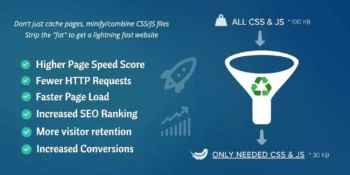
Asset CleanUp is a useful option when your main requirement is inspecting and unloading CSS or JavaScript without buying another broad optimization package.
The free version supports page-level asset management and Test Mode, which lets an administrator check changes before applying them to visitors. It complements a page cache; it does not replace one. Official features and Test Mode instructions.
Where it fits: a working cache plus deliberate, manual asset reduction.
The limitation: a file that appears unused during initial loading may be needed by a menu, popup, or form interaction. After testing in administrator mode, also verify the published result as a logged-out visitor.
Use one tool as the main owner of your unload rules. Maintaining the same exceptions in several plugins is an excellent way to confuse your future self.
7. AI Assets Scanner + Code Unloader — automate the investigation (Free trial+Paid scans + free Code Unloader plugin)


AI Assets Scanner is the tool I built to reduce the repetitive investigation behind asset unloading. It visits selected pages on desktop and mobile, assesses CSS and JavaScript usage, and prepares page-specific unloading rules.
Code Unloader applies those rules. It is also a free manual asset manager in its own right, with rollback controls. AAS can export rules for import or push/sync them to Code Unloader.
Where it fits: after your core caching and image setup, when unnecessary assets remain across multiple pages. AAS handles discovery; Code Unloader handles implementation; your main optimizer continues handling caching and its assigned loading optimizations.
Pricing checked: AAS uses prepaid credits rather than a subscription. The 100-credit pack has a regular listed price of $25; the product page displayed an early-bird price of $17.50 when checked. Standard scanning uses one credit per page, with an additional credit if an Extra Time scan runs. Credits do not expire. Check the current credit packs and terms before buying.
The limitation: automated checks reduce manual investigation; they do not prove that every interaction is safe. AAS separates Safe and Aggressive rules. Review the groups, start conservatively, and test forms, menus, and purchase flows before keeping the changes. Code Unloader lets you reverse a problematic unload.
A useful first test is one representative page: save its baseline, scan it, apply reviewed rules, purge the relevant caches, then compare requests, transferred bytes, LCP, and actual functionality. That is a test procedure, not a promised percentage improvement.
On an already lean site, the main benefit may be time saved and a little less unnecessary code. There is no reason to pretend that removing a small stylesheet will cure a slow database.
This replaces HFCM in the earlier article. A snippet manager can help place code, but it is not a direct substitute for performance diagnosis or asset optimization.
Which image optimization plugins should you use?
EWWW Image Optimizer and ShortPixel are good dedicated options when your current setup does not already handle images adequately. FlyingPress now covers this job too, so check what is missing before adding another processor.
8. EWWW Image Optimizer — flexible image optimization (Free and paid)

EWWW IO provides free lossless image optimization, WebP conversion, resizing, and bulk tools, with paid options for additional capabilities. Local processing depends on server support; its documentation also describes API alternatives. Official plugin details.
Where it fits: a dedicated image workflow alongside WP Rocket, or another cache that is not doing the same image-processing job.
My hands-on evidence: EWWW handled images in both configurations of my September 7 caching-plugin comparison. Keeping the image optimizer constant avoided changing that part of the setup at the same time. It was not an EWWW-versus-ShortPixel compression test.
The limitation: a smaller file can still be the wrong image size. Check the dimensions delivered to mobile, and make sure the main above-the-fold image loads promptly.
See my EWWW Image Optimizer review for a closer look.
9. ShortPixel — compression choices for image-heavy sites (Free allowance and paid)

ShortPixel offers lossy, glossy, and lossless compression, modern image formats, and bulk optimization. The free allowance is 100 credits per month. WordPress-generated thumbnails can consume credits too, so do not assume that means 100 complete media uploads. Official plugin details.
Where it fits: photographers, portfolios, and stores where file size and visible quality both deserve attention.
The limitation: stronger compression needs visual inspection. Test detailed product images, gradients, and photographs before processing the entire library. Keep originals available if you may need to restore them.
I would choose between EWWW, ShortPixel, and FlyingPress’s image workflow using the same source images, output dimensions, and acceptable quality. The smallest file wins only if it still looks right.
Which plugin helps with database maintenance?
WP-Optimize is useful for targeted housekeeping, but a clean database is not necessarily a fast application. Removing old data and fixing an expensive query are different tasks.
10. WP-Optimize — targeted database cleanup (Free and paid)

WP-Optimize can remove items such as old revisions, trashed content, and spam comments, and offers scheduling. It also includes caching, image compression, and minification, which explains why it overlaps with several other entries. Official features.
Where it fits: a site with a demonstrated cleanup need. If the existing performance plugin already handles the required housekeeping, an extra plugin may add nothing useful.
The limitation: do not enable another page cache or duplicate file optimization simply because those tabs are available. Check your primary optimizer’s compatibility guidance before combining them, and keep a restorable backup before deleting data.
For slow uncached requests, investigate repeated queries, autoloaded options, and plugin behaviour. Deleting a few revisions will not repair a plugin that performs expensive work on every request.
Which WordPress performance plugins can work together?
A compatible stack gives each optimization job one owner. The combinations below are starting configurations to test on your site, not a claim that every theme, host, and setting combination has been benchmarked together.
| Starting stack | Division of work | What to avoid |
|---|---|---|
| WP Rocket + EWWW or ShortPixel | WP Rocket: cache and front end. One image tool: compression and formats. | Duplicate lazy loading or image rewriting. |
| WP Rocket + Perfmatters + one image tool | WP Rocket: cache and chosen loading optimizations. Perfmatters: script management and selected controls. | Two unused-CSS or JavaScript-delay engines. |
| FlyingPress, with optional AAS + Code Unloader | FlyingPress: caching, front-end and image optimization. AAS/CU: asset discovery and unloading. | Duplicate image processing or competing unload rules. |
| LiteSpeed Cache, with an optional asset manager | LiteSpeed: supported server cache and selected optimizations. Asset manager: page-specific unloading. | Adding WP Rocket or FlyingPress as a second independent page cache. |
| Host-managed page cache + Perfmatters + one image tool | Host: page cache. Perfmatters: selected front-end work. Image tool: compression. | Assuming that the host permits every cache plugin. |
Speed Analyzer can provide diagnosis before and after any of these setups. AAS + Code Unloader can also fill the asset-discovery and unloading role alongside WP Rocket or a host-managed cache, subject to testing. You do not need Perfmatters, Asset CleanUp, and Code Unloader all controlling the same files.
Page caching and persistent object caching can coexist because they cache different things. But use one object-cache implementation connected to the hosting’s supported backend. Likewise, server and CDN page caches can cooperate when their exclusions and purges are coordinated.
Before keeping a change, check mobile navigation, forms, consent behaviour, tracking, and any store checkout. A faster page that has forgotten how to accept a payment is not an improvement.
How should you test a new plugin stack?
Change one layer at a time and repeat tests under the same conditions. Otherwise, you will not know which change helped.
- Save the baseline, tested URLs, plugin versions, and settings. Include a representative inner page, not just the homepage.
- Keep hosting, CDN state, image processing, and test device settings unchanged while comparing one plugin or feature.
- Purge relevant caches after changing settings, then let preloading or optimization finish. Test warm-cache behaviour separately from a deliberately cold-cache request.
- Run several tests per configuration. Compare individual results and a median only within the same conditions; do not select whichever run makes the nicest screenshot.
- Check functionality and layout on desktop and mobile. Review real-user LCP, INP, and CLS over time where data is available.
My September tests are useful evidence within their stated limits. They are also a reminder to record settings exports and cache-hit status in future comparisons, so the next result is easier to reproduce.
When are plugins not enough?
Plugins are not enough when the remaining delay comes from server capacity, expensive application work, broken caching behaviour, or a heavy page design.
Investigate beyond plugin settings when:
- Public pages repeatedly miss the cache, or unexpected sessions and response headers prevent caching.
- Uncached requests, account pages, or checkout remain slow because of PHP work, database queries, or external API calls.
- A large hero image, video, slider, or excessive page-builder markup dominates rendering.
- Third-party scripts create delays that require changing what the business loads, not merely how it loads it.
- The site looks fast in a single lab run, but visitors still report poor responsiveness.
This is where I move from configuring plugins to examining the full website. My WordPress speed optimization service covers the wider investigation and optimization work, with attention to the site’s design and functionality.
If you already have a capable caching plugin and the site is still slow, the next useful purchase may be a diagnosis rather than another annual license. Diagnose a WordPress site that is still slow after installing a caching plugin.
Conclusion: Which speed optimization setup would I choose?
Start with the host, choose one main optimizer, then add only what the measurements justify. WP Rocket is an approachable premium starting point. FlyingPress covers more jobs internally. LiteSpeed Cache is a natural fit for supported hosting. W3 Total Cache remains a flexible free option for someone willing to configure it.
For the remaining work, use a dedicated image optimizer where needed, manual asset control when you want to make the decisions yourself, or AAS + Code Unloader when you want help automating the investigation. Diagnose with Speed Analyzer before assuming what needs fixing.
So yes, a plugin can help rescue a website slowed down by plugins. The trick is to give it a useful job—not just another seat at the table.
FAQ
What is the best free WordPress speed optimization plugin?
LiteSpeed Cache is my first check on compatible hosting. W3 Total Cache is another option when you need a configurable free page cache. The right choice depends on the host and the problem; a free asset manager or diagnostic tool solves a different part of the job.
Can I use WP Rocket and FlyingPress together?
Choose one as your main optimization plugin. Their caching and front-end features overlap substantially, and there is usually no useful reason to maintain both for the same tasks.
Does FlyingPress replace an image optimization plugin?
It can. FlyingPress has included image compression and WebP/AVIF output since version 5.3. Keep a separate image tool only when its workflow or features serve a specific need, and avoid processing the same images through competing setups.
Does AI Assets Scanner replace WP Rocket or FlyingPress?
No. AAS discovers asset-unloading opportunities and prepares rules for Code Unloader. It complements the caching and loading optimization handled by WP Rocket or FlyingPress.
Will these plugins guarantee better rankings or AI Overview visibility?
No. They can improve technical performance, but rankings and AI citations depend on more than speed. Google’s guidance says there is no special AI Overview markup or separate technical requirement: normal search eligibility and useful, accessible content remain the foundation. Google’s AI search guidance.
Disclosure: I develop AI Assets Scanner, Code Unloader, and Speed Analyzer. They are included for their specific roles, alongside alternatives. This article may contain affiliate links; purchases through those links may earn me a commission at no extra cost to you.
Founder of WPservice.pro
Dalibor is a master of web excellence. With a Bachelor of Science (BS) in civil engineering, Dalibor had an unusual road to end up in IT. Cultivating deep expertise in WordPress website speed optimization, meticulous maintenance, development, and search engine optimization (SEO) while preserving his engineering approach to problem-solving.
Having completed over 90 projects and achieved a top-rated status (on Upwork) in the highly competitive digital niche, Dalibor is a proper authority on enhancing performance and ensuring websites look exceptional and perform flawlessly.
Dalibor is a published writer and an avid learner who continually explores and embraces the latest digital trends. With a commitment to quality and a keen eye for detail, Dalibor is your trusted guide to achieving web success.